Shared Database via Google Drive
Google Drive is the simplest way to share a database with your family. Everyone connects to the same Google account in Safe, and any changes sync to all family members automatically. The free 15 GB tier is more than enough — the database file is tiny — and there's no limit on the number of devices that can sync.
What you'll need
Create a brand-new free Google account dedicated to the shared database — don't reuse anyone's personal Gmail. A clean account keeps mail, contacts, and calendar separate, and every family member can sign into it without seeing personal data.
Create a free Google account →
Step 1: Create the shared database
On any device, open Safe and create a new database. Tap the Safe button in the top-right corner of the app → Manage Databases, select the shared database, and configure its cloud: choose Google Drive and sign in with the new shared account.
Add the passwords you want to share — Netflix, Disney+, Wi-Fi, and anything else the family needs access to.
Step 2: Each family member connects
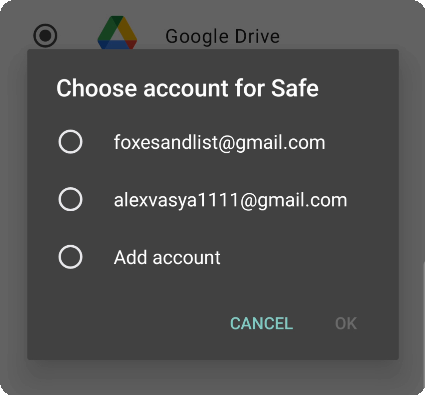
Choose Google account for Safe
On Android, Safe accesses Google Drive through the Google account registered on the device. Each family member needs to add the shared account to their phone first:
- Open phone Settings → Accounts → Manage accounts → Add account → Google
- Sign in with the shared account
- Disable mail, contacts, and calendar sync for this account — you only need Drive
After adding the account, open Safe, tap the Safe button in the top-right corner of the app → Manage Databases, select the shared database, and configure its cloud: choose Google Drive and select the shared account from the list.
On iOS, it's simpler — Safe connects to Google Drive directly without needing the account added to the device. Tap the Safe button in the top-right corner of the app → Manage Databases, select the shared database, and configure its cloud: choose Google Drive and sign in with the shared account when prompted.
Using OneDrive instead
If your family is mostly on Windows or already uses Microsoft accounts, the same flow works with OneDrive — just create a free Microsoft account at account.microsoft.com instead of a Google account, then choose OneDrive in Safe's cloud setup. The free 5 GB tier is plenty, and Microsoft allows roughly 10 signed-in devices per account, comfortably covering a family of 6.
For other clouds (Nextcloud, pCloud, a NAS), see Shared Database via WebDAV.