
I Forgot My Password
This article covers both cases — a forgotten extra database password (the easy case) and a forgotten main database password (your master password).
Forgot an extra database password?
When you create an extra database, Safe automatically saves its name and password as a card inside your main database. Open the main database and search for the extra database's name — the card has the password.
If you deleted that card by accident, the only path forward is the same as for a forgotten main password — keep reading below.
Forgot your main (master) password?
Try your common passwords
Before anything else, take a few minutes. Try all your common passwords and variations — capitalization differences, extra spaces, older passwords, different keyboard layouts. Even a small detail can jog your memory.
Log in with biometrics, then change the password
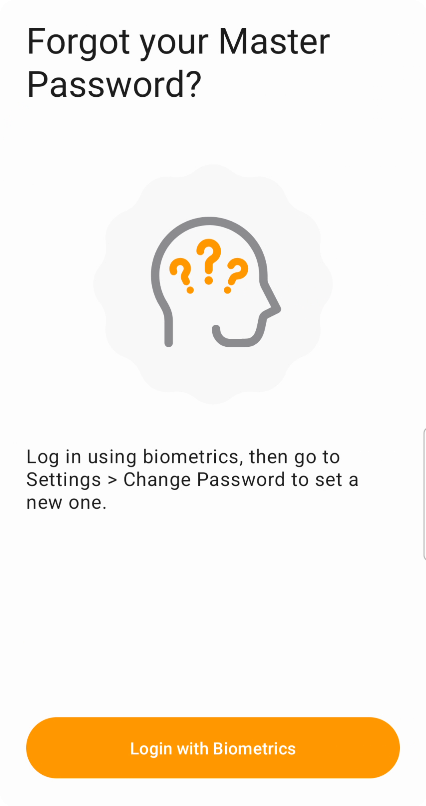
Using biometrics to password recovery
The easiest path — if you have biometrics set up on at least one device. Enter the wrong password 3 times and Safe will offer you the option to log in with biometrics instead. Once you're in:
- Go to Settings → Databases → Main database → Change password and set a new password
- Sync the database to the cloud (so other devices can pick up the new copy)
Update your other devices
Your other devices still have the database locked with the old password locally, so they can't sync. On each one:
- Uninstall Safe from the device (long-press the app icon on mobile, or use the standard uninstall flow on desktop)
- Reinstall Safe from your app store
- Open Safe and choose Restore database from a cloud — sign in with the new password
Roll back using cloud version history
If you changed your password recently and still remember the old one, you may be able to roll back your cloud database to an earlier version that used that password.
This doesn't work if your database is stored in iCloud or Google Drive's app folder — those folders don't expose file version history. See Cloud database location for where to find your SafeInCloud.db file in each cloud.
- Open your cloud storage in a browser and find the
SafeInCloud.dbfile - Right-click it → Version history (or Manage versions) → download a version from before the password change
- Uninstall Safe (desktop is easiest) and reinstall it — you'll get a clean setup screen
- Create a new database with any temporary password
- Go to Options → Databases → Main database → Restore and select the downloaded file
- Try logging in with the old password; if it doesn't work, try an earlier version from the history
Nothing worked — start over
- Delete your cloud database file from your cloud storage — see Cloud database location for where to find it
- Uninstall Safe from your device, then reinstall it from your app store
- Open Safe and create a new database with a new password
You'll need to re-add your passwords manually or import them from your browser.
Still need help?
Contact support@safe-in-cloud.com — we can't recover your password, but we can help you figure out the best path forward.