
First Time Setup
Welcome to Safe! The app stores all your passwords in one encrypted place — you won't lose them, forget them, or have to copy-paste them again.
When you first open Safe, you'll create a database and set a master password. A setup wizard will then walk you through the remaining steps.
Turn on Autofill
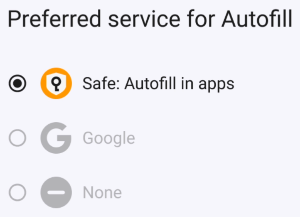
Correctly configured autofill in Safe
Autofill lets Safe suggest your saved passwords whenever you open an app or visit a website — no copy-pasting required.
The wizard or the banner on the main screen will guide you through enabling it. On Android, note that you'll need to configure autofill twice: once for the system, and once for your browser (Chrome, Firefox or another browser) separately.
More details: Set Up Autofill
Back up your passwords to the cloud
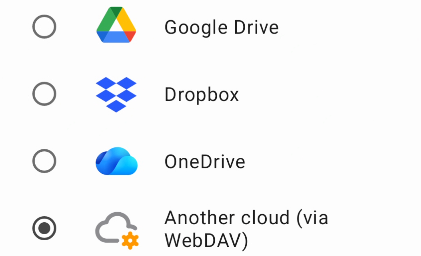
Choose your cloud provider
Cloud sync makes sure your passwords are never lost — even if your phone breaks or gets lost. It also keeps everything in sync if you use Safe on more than one device.
The wizard or the banner will walk you through connecting your cloud account. To change it later, go to Tools → Configure cloud.
More details: Cloud Sync
Import your existing passwords
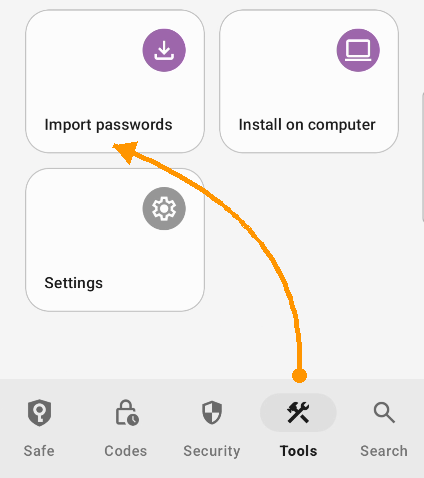
Tap here to import
You probably already have passwords saved in Chrome or another manager — you don't have to add them one by one. Go to Tools → Import passwords.
If your password manager doesn't allow exporting on mobile, use the Safe desktop app instead — it supports more import sources.
More details: Import Your Passwords
Welcome to Safe! The app stores all your passwords in one encrypted place — you won't lose them, forget them, or have to copy-paste them again.
When you first open Safe, you'll create a database and set a master password.
Follow the setup wizard
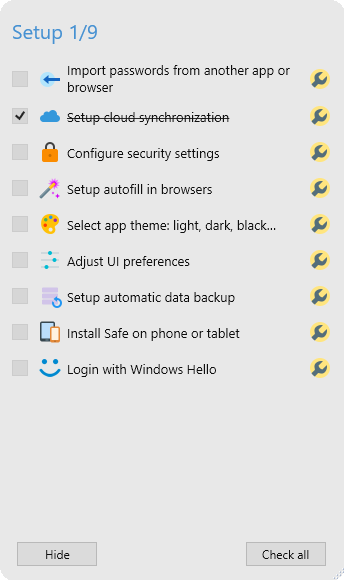
Click wrench button to setup
After creating the database, you'll see a setup wizard on the right side of the screen. It walks you through everything step by step — just go down the list and check off each item.
- Import passwords from another app or browser — pull in everything you already have saved in Chrome or another manager. More details
- Setup cloud synchronization — back up your passwords and keep them in sync across devices. More details
- Setup autofill in browsers — install the browser extension so Safe can fill in passwords automatically in your browser. More details
On Windows the list also offers Use Safe as a Windows passkey provider and Login with Windows Hello. On Mac it offers Turn on system autofill.
You don't have to complete everything at once — the wizard stays there until you're done. To hide it, click Hide; to bring it back, choose Tools → Setup.