
Auto Backup
Auto Backup saves snapshots of your database to local storage on a schedule you set. Unlike cloud sync — which mirrors your current state — backups let you roll back to an earlier point.
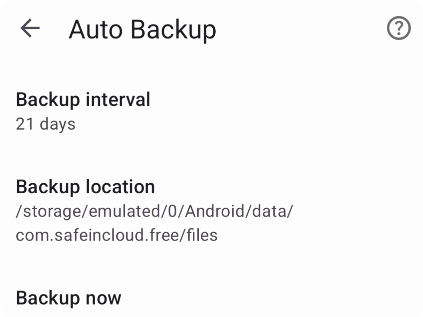
Configure local backup here
Go to Settings → Auto Backup and select a backup interval. Backups are created for all your databases, including extra ones.
The Backup location field shows where backups are stored. The location cannot be changed. To access a backup file, tap Backup location, choose a file, and pick an app to open or share it.
To back up immediately, tap Backup now. This also resets the schedule for the next automatic backup.
The date of the last backup and the next scheduled one are shown at the bottom of the screen.
Note: If you uninstall Safe, all auto backups are deleted.
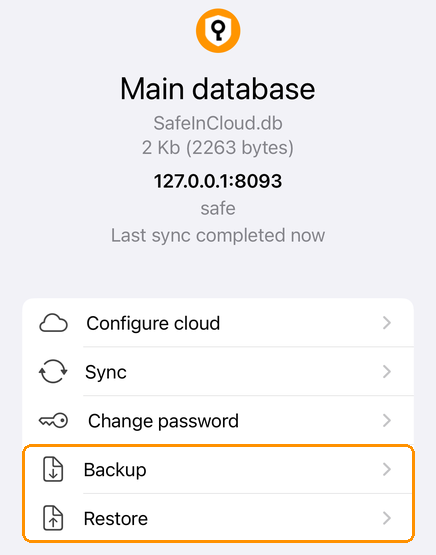
Back up and restore on iPhone
There is no Auto Backup on iPhone and iPad. Back up a database manually:
- Tap the Safe button in the top-right corner → Manage databases → tap the database
- Tap Backup → Choose location and pick a folder in Files
To bring a backup back, open the same screen and tap Restore.
Go to Options → Auto Backup. Choose a backup interval.
Then click Select and choose a folder for the backup files — until a folder is chosen, Backup now stays unavailable. Show opens the folder.
To back up immediately, click Backup now. This also resets the schedule for the next automatic backup.
The date of the last backup and when the next one is scheduled are shown at the bottom of the page.
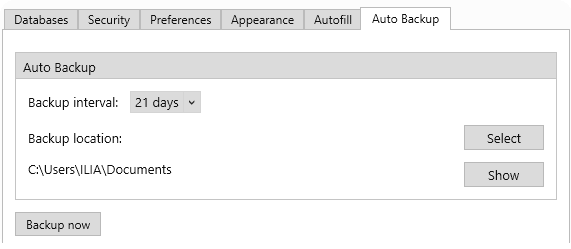
Configure local backup here
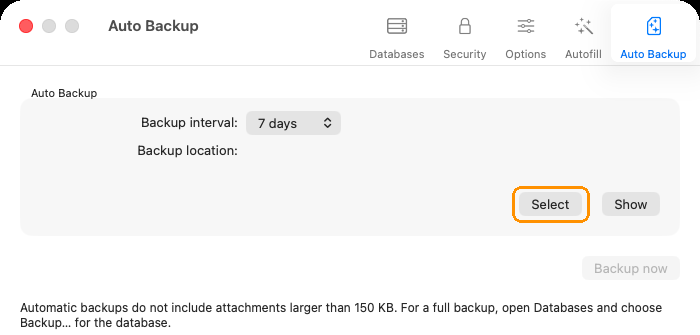
Choose a backup folder with Select
Go to Safe → Preferences → Auto Backup. Choose a backup interval.
Then click Select and choose a folder for the backup files — until a folder is chosen, Backup now stays unavailable. Show opens the folder in Finder.
To back up immediately, click Backup now. This also resets the schedule for the next automatic backup.