
Managing Labels
Safe lets you create your own labels, name them, color them, and organize them however you like. Unlike built-in categories, custom labels are fully under your control — you decide what they're called, what they look like, and when to delete them.
Opening label management
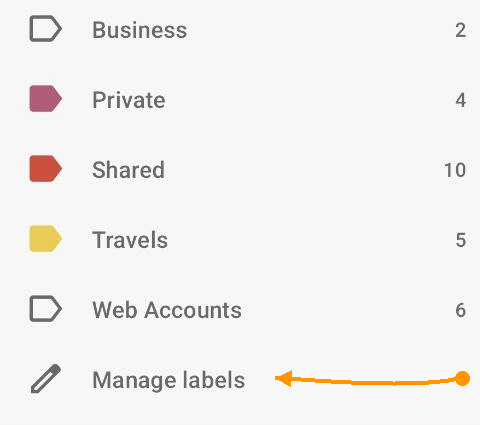
Left menu then Manage Labels
Open the Left menu and tap Manage Labels. You'll see all custom labels for the currently selected database.
Creating a label
Tap the + button. Give the label a name and choose a color by tapping the tag icon. You can also pin the label to the top of the list so it's always easy to find.
Editing and deleting labels
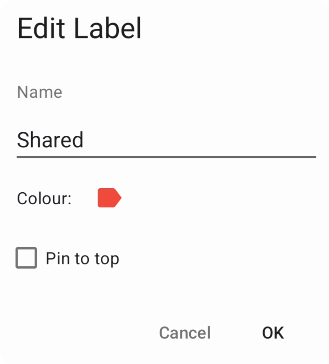
Configure existing or new label
Tap any existing label to edit its name, color, or pin status. To delete it, open it for editing and use the delete option — deleting a label removes it from all cards it was assigned to.
On a computer, labels are listed in the left panel under Labels. Right-click a label to Rename it, Select color, Pin to top or Delete it. To create a label, choose File → Add label.
Assigning labels to cards
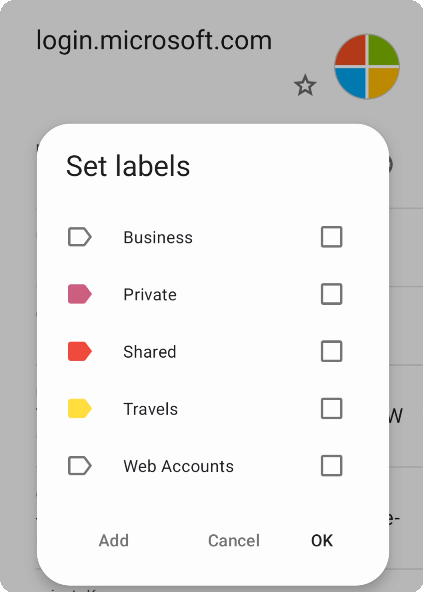
Assign labels to a card
Open any card, then:
- Android, iPhone and iPad: tap Add label under the card header (on iPhone and iPad, More (⋯) → Set labels works too)
- Computer: click Set labels at the bottom of the card
Select one or more labels in the Set Labels list — or create a new one with Add label. Assigned labels appear on the card and in the left menu for quick filtering.