
Auto-lock — When Safe Locks Itself
Safe locks itself so that nobody can open your passwords on a device you left unattended. When Safe is locked, you need your master password (or fingerprint, Face ID, Touch ID or Windows Hello, if you turned them on) to open it again. You decide when this happens.
To lock Safe right away, tap the Safe button in the top-right corner and choose Lock Safe on a phone, or click Lock in the toolbar on a computer.
Settings
Go to Tools → Settings → Auto-lock:
- Lock at exit — Safe locks as soon as you leave the app. Off by default.
- Auto-lock — Safe locks after this many minutes without use: from 1 to 15 minutes, 1 minute by default.
Settings
Go to Tools → Settings → Auto-lock:
- Lock at exit — Safe locks as soon as you leave the app. On by default.
- Auto-lock — Safe locks after this many minutes without use, or Never. This setting is available only when Lock at exit is off; then it is 5 minutes by default.
Settings
Go to Tools → Options → Security. The Locks section has:
- Lock if computer locked — Safe locks when you lock Windows.
- Lock if window closed — Safe locks when you close its window, even though the app keeps running in the background.
- Lock in background — Safe locks when you switch to another app.
- Auto-lock — Safe locks after this many minutes without use: move the slider from Never to 60 min.
In the Clipboard section, Empty clipboard after clears what you copied from Safe (a password, for example) after the time you choose.
Settings
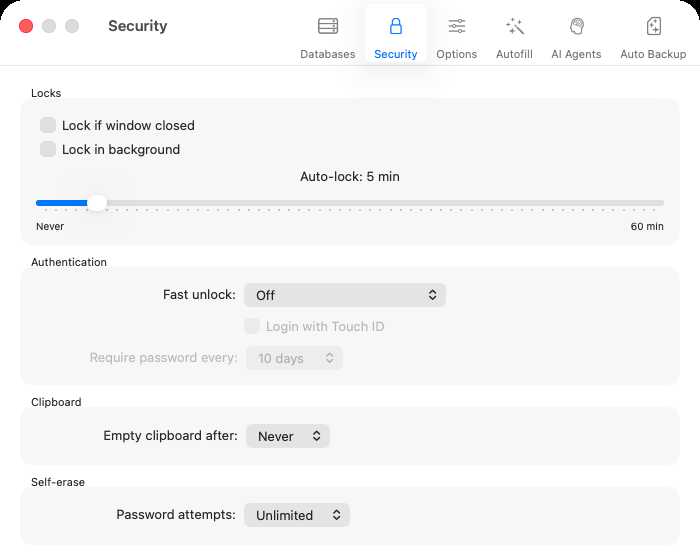
Auto-lock settings in Preferences → Security
Go to Safe → Preferences → Security. The Locks section has:
- Lock if window closed — Safe locks when you close its window, even though the app keeps running. Off by default.
- Lock in background — Safe locks when you switch to another app. Off by default.
- Auto-lock — Safe locks after this many minutes without use: move the slider from Never to 60 min. 5 minutes by default.
In the Clipboard section, Empty clipboard after clears what you copied from Safe (a password, for example) after 1 to 5 minutes. By default it is Never.
Related
- How to Use Biometric Login — unlock Safe with your fingerprint, Face ID, Touch ID or Windows Hello instead of typing the master password.