
Set Up Autofill
Autofill is what makes a password manager truly convenient. Once enabled, Safe will automatically suggest your saved passwords whenever you log into an app or a website. No more switching between apps to copy and paste.
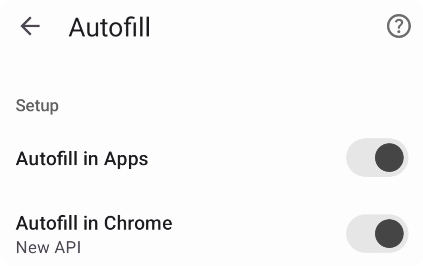
Configured autofill in Safe
On first launch, the setup wizard will walk you through enabling autofill. If you skipped it, a banner will appear at the top of the main screen — tap it to come back to this step. On Android, there are two separate autofill settings that both need to be configured:
Autofill in apps
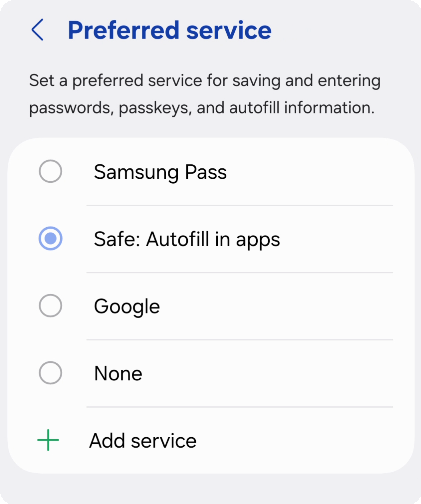
Set Safe as preferred autofill service
This covers all apps on your phone. Your Android system needs to know that Safe is your password provider. Go to Tools → Settings → Autofill → Autofill in apps and follow the steps to set Safe as the autofill service.
Once enabled, you'll see Safe suggestions whenever you tap a login field in any app.
Autofill in browsers
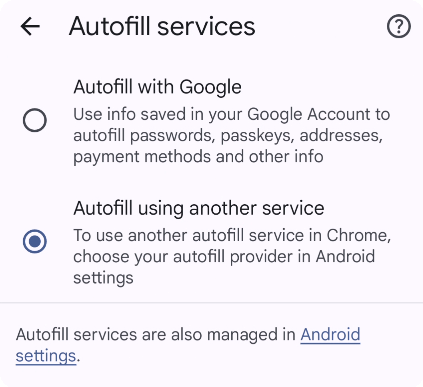
Configured autofill in Chrome
Browsers manage autofill separately from the system and need their own setup. Go to Tools → Settings → Autofill → Autofill in browser, choose your browser — Chrome, Firefox or Other browsers (Edge, Samsung Internet, Opera) — and tap Setup. In versions before 27.16 this item is called Autofill in Chrome.
After both are configured, you're fully covered on Android.
Something not working?
If autofill isn't appearing where you expect, check our Autofill Troubleshooting guide.
On first launch, the setup wizard will walk you through enabling autofill. If you skipped it, a banner will appear at the top of the main screen — tap it to come back to this step.
Enable Password AutoFill
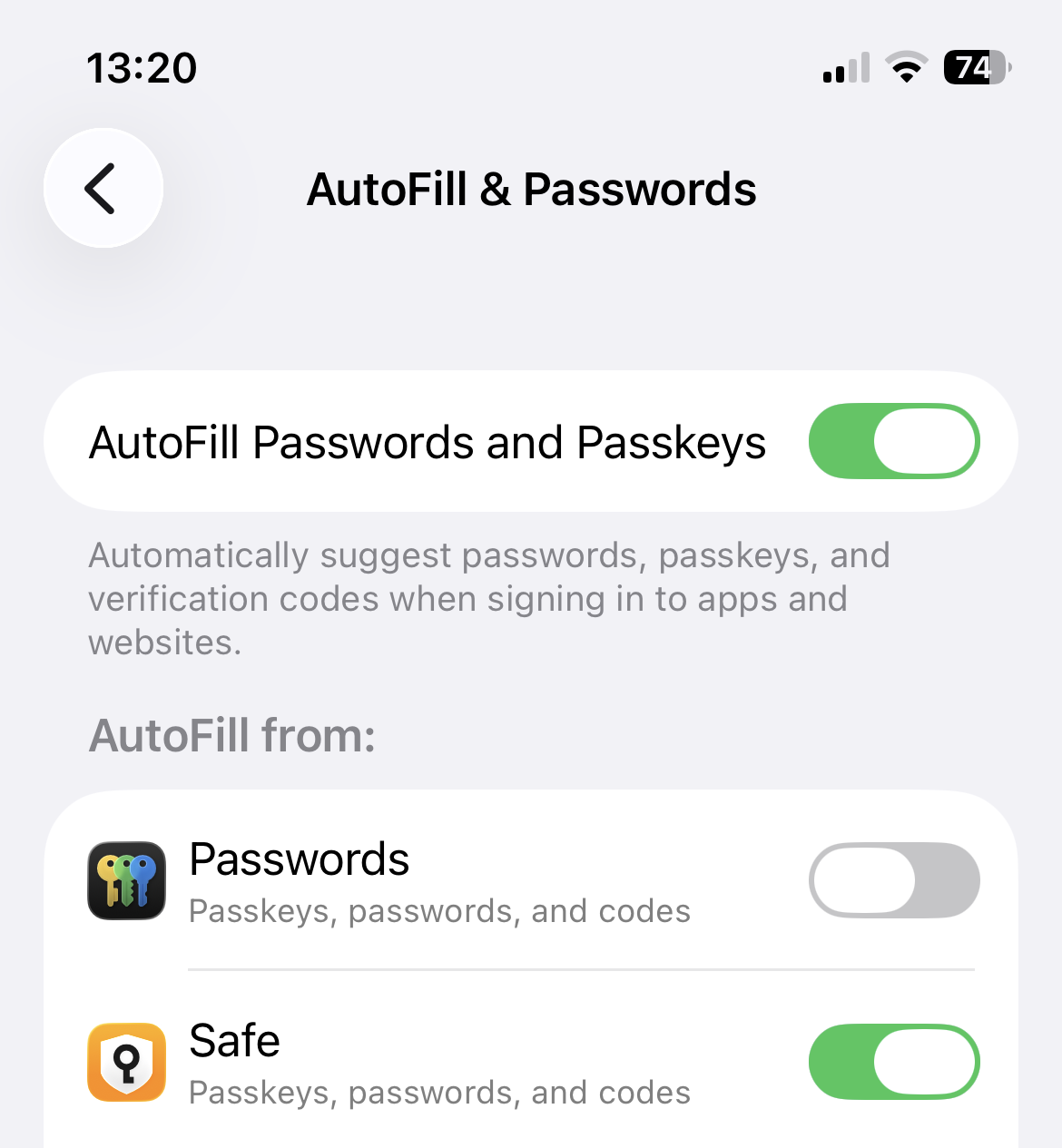
Set Safe as autofill provider in iOS Settings
Go to iPhone Settings → General → AutoFill & Passwords, turn on AutoFill Passwords and Passkeys, and turn on Safe in the list below it.
Once enabled, you'll see a key icon above the keyboard whenever you tap a login field in any app. Tap it to fill in your credentials from Safe.
Something not working?
If autofill isn't appearing where you expect, check our Autofill Troubleshooting guide.
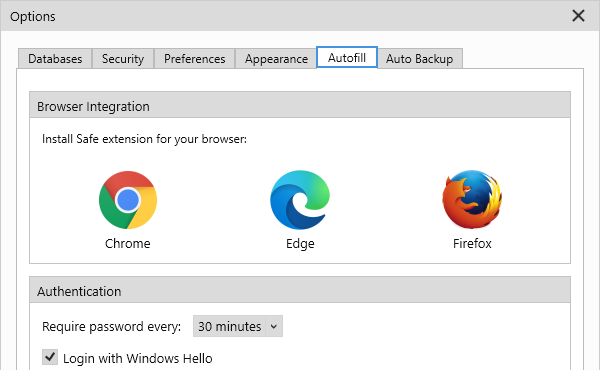
Install the extension for your browser
The Setup wizard will suggest you to set up autofill in browsers. Install the extension for your browser and follow the on-screen instructions. The same buttons are in Options → Autofill.
Once installed, you'll see the Safe icon in your browser toolbar. When you visit a login page, click the Safe icon in the toolbar and select the credentials you want to fill in. Make sure the Safe desktop app is running — the extension connects to it to access your passwords.
Something not working?
If the extension isn't filling passwords as expected, check our Autofill Troubleshooting guide.
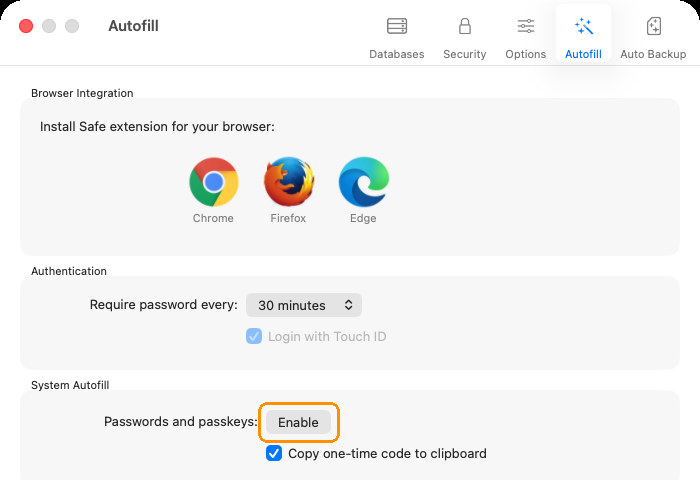
Browser extensions and System Autofill
On Mac, Safe fills passwords in two ways: through macOS in Safari and other apps, and through the Safe extension in Chrome, Edge and Firefox. Both are set up in Safe → Preferences → Autofill.
Safari and other apps
Autofill in Safari and other apps is handled by macOS. In Safe → Preferences → Autofill, click Enable next to Passwords and passkeys. macOS opens System Settings → General → AutoFill & Passwords — turn on Safe there. On macOS 14, the switch is in System Settings → Passwords, under the password options.
After that, Safe offers your passwords, passkeys and one-time codes when you sign in to a website in Safari or to an app.
Safe may also remind you itself. After you unlock it, Safe can show a System Autofill window saying that autofill in Safari and other apps is now handled by macOS. Click Enable to go to System Settings right away, or Later to skip it for now. If you check Do not show again, the window stops appearing — you can still turn Safe on at any time with Enable in Safe → Preferences → Autofill. The Setup checklist (Tools → Setup) also has a Turn on system autofill item.
Chrome, Edge and Firefox
Install the extension for your browser with the buttons under Browser Integration, or from the store:
Once installed, you'll see the Safe icon in your browser toolbar. When you visit a login page, click the Safe icon and select the credentials you want to fill in. Make sure the Safe app is running — the extension connects to it to access your passwords.
Something not working?
If autofill isn't working as expected, check our Autofill Troubleshooting guide.