
Autofill Issues
If autofill isn't appearing where you expect, the fix is usually a one-time setting.
Autofill not working in apps
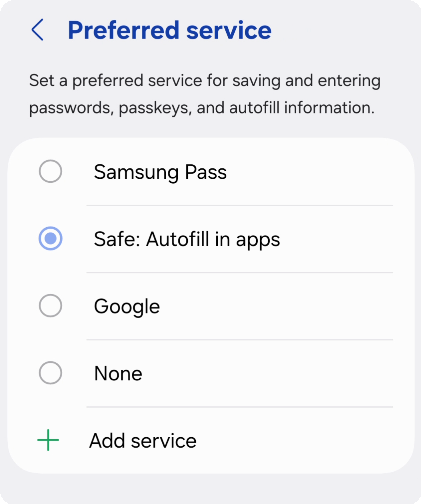
Set Safe as preferred autofill service
Safe needs to be set as your system's autofill provider. Go to Settings → Passwords, passkeys & accounts → Preferred service and select Safe.
Once set, you'll see Safe suggestions whenever you tap a login field in any app.
Haven't set up autofill yet? See Set Up Autofill
Autofill not working in Chrome
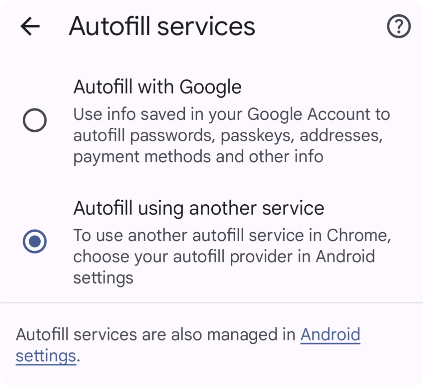
Configured autofill in Chrome
Open Chrome Settings → Autofill Services and choose Autofill using another service. Restart Chrome.
Chrome 131 or newer is required.
A card isn't being suggested
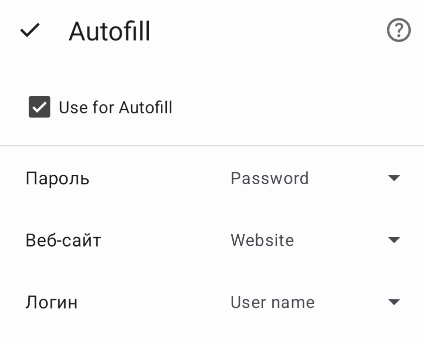
Enable autofill for this card
For a card to appear in autofill suggestions, it needs three things: a User name field, a Password field, and a Website field. Also check that the Use for Autofill option is enabled inside the card.
Autofill fills one account without offering a picker
If you have several accounts saved for the same website and Safe fills one of them automatically without asking which, the app is missing the Appear on top permission (also called Display over other apps). It's a special Android permission that lets Safe show the account picker on top of the browser or app you're filling into.
Fix: open phone Settings → Apps → Safe → Advanced → Appear on top (path varies by manufacturer — on Samsung it may be under Special access). Turn it on.
Still not working?
Contact support@safe-in-cloud.com and include your device model, OS version, Safe version, and a description of the issue. Screenshots or a short video are especially helpful.
Autofill not working
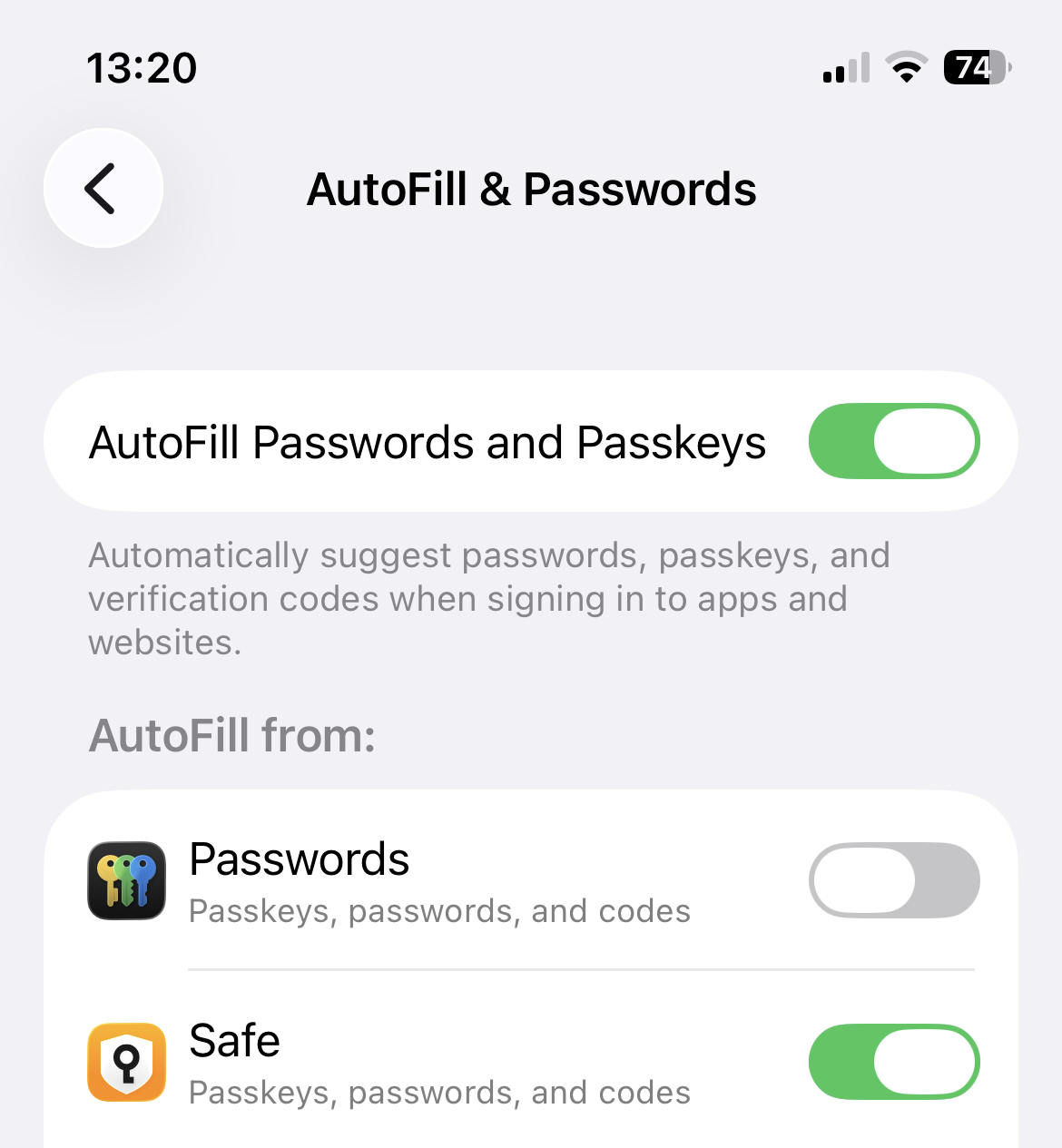
Set Safe as autofill provider in iOS Settings
Safe needs to be enabled in your iPhone settings. Go to iPhone Settings → General → AutoFill & Passwords, enable AutoFill Passwords, and make sure Safe is selected as the source.
Once set, you'll see a key icon above the keyboard whenever you tap a login field. Tap it to fill your credentials from Safe.
Haven't set up autofill yet? See Set Up Autofill
A card isn't being suggested
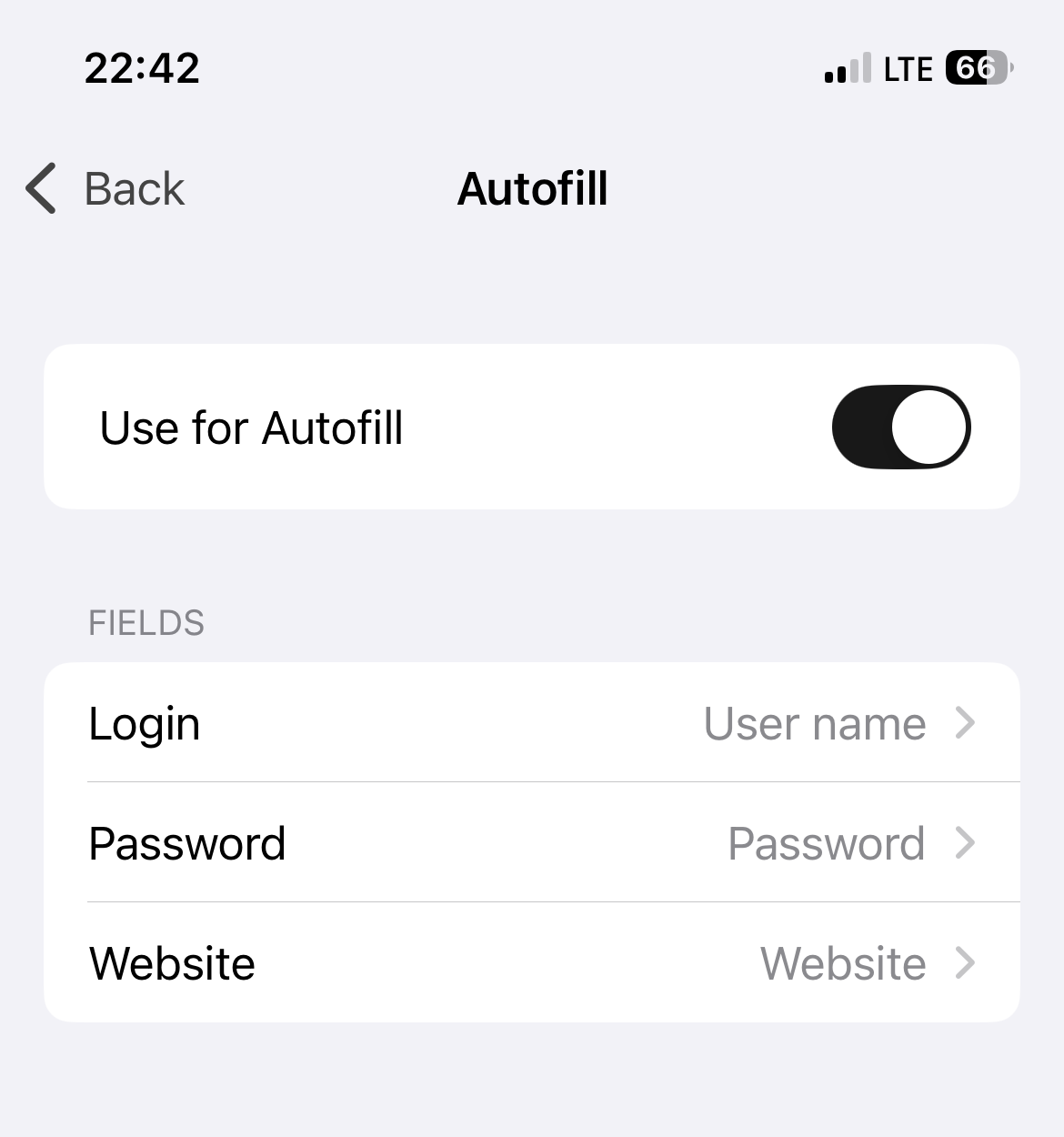
Enable autofill for this card
For a card to appear in autofill suggestions, it needs three things: a User name field, a Password field, and a Website field. Also check that the Use for Autofill option is enabled inside the card.
Still not working?
Contact support@safe-in-cloud.com and include your iOS version, Safe version, and a description of the issue.
Extension not connecting
The browser extension requires the Safe desktop app to be running. Look for the Safe icon in your system tray — if it's not there, launch the app first, then try again in the browser.
If the extension shows a "not running" error: update Safe to version 25.3.0 or later on Windows, or 25.3.5 or later on macOS.
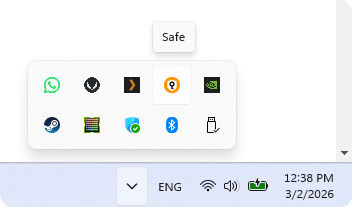
Safe in the system tray
Haven't installed the extension yet? See Set Up Autofill
A card isn't being suggested
Enable autofill for this card
For a card to appear in autofill suggestions, it needs three things: a User name field, a Password field, and a Website field. Also check that the Use for Autofill option is enabled inside the card.
Still not working?
Contact support@safe-in-cloud.com and include your OS, browser name and version, Safe version, and a description of the issue.