
Passkeys Issues
Passkeys are a secure, passwordless way to log in — no password needed, just biometrics. Safe stores your passkeys alongside passwords and fills them in automatically. If something isn't working, here are the most common fixes.
Requirements
Safe supports Passkeys on Android 14 and later, starting from app version 25.0.0. Make sure both your device OS and the app are up to date before troubleshooting.
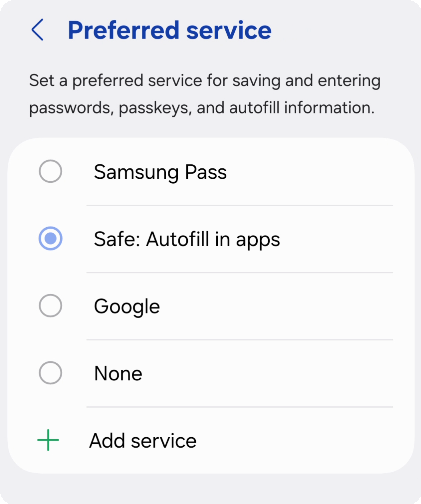
Set Safe as preferred autofill service
Safe must also be set as the preferred autofill service. Go to Settings → Passwords, passkeys & accounts → Preferred service and select Safe. Without this, passkeys won't be suggested.
A Passkey isn't being suggested at login
Check that the card has Use for Autofill enabled. If it still doesn't appear, try resetting the autofill provider: go to Settings → Passwords, passkeys & accounts, set the Preferred service to None, then set it back to Safe. Restart the app.
Chrome doesn't suggest Passkeys
Chrome 131 or newer is required. Also make sure you've enabled the new autofill method: open Chrome Settings → Autofill services and choose Autofill using another service.
If that doesn't help, enable the experimental flag: open chrome://flags#enable-autofill-virtual-view-structure, set it to Enabled, restart Chrome, then repeat the Autofill services step.
QR code login isn't working
Check your internet connection on both devices and make sure the camera scans the code cleanly. If the issue persists, try creating a new Passkey for the account.
Still not working?
Contact support@safe-in-cloud.com and include your device model, Android version, Safe version, and a description of the issue. Screenshots or a short video are especially helpful.
Requirements
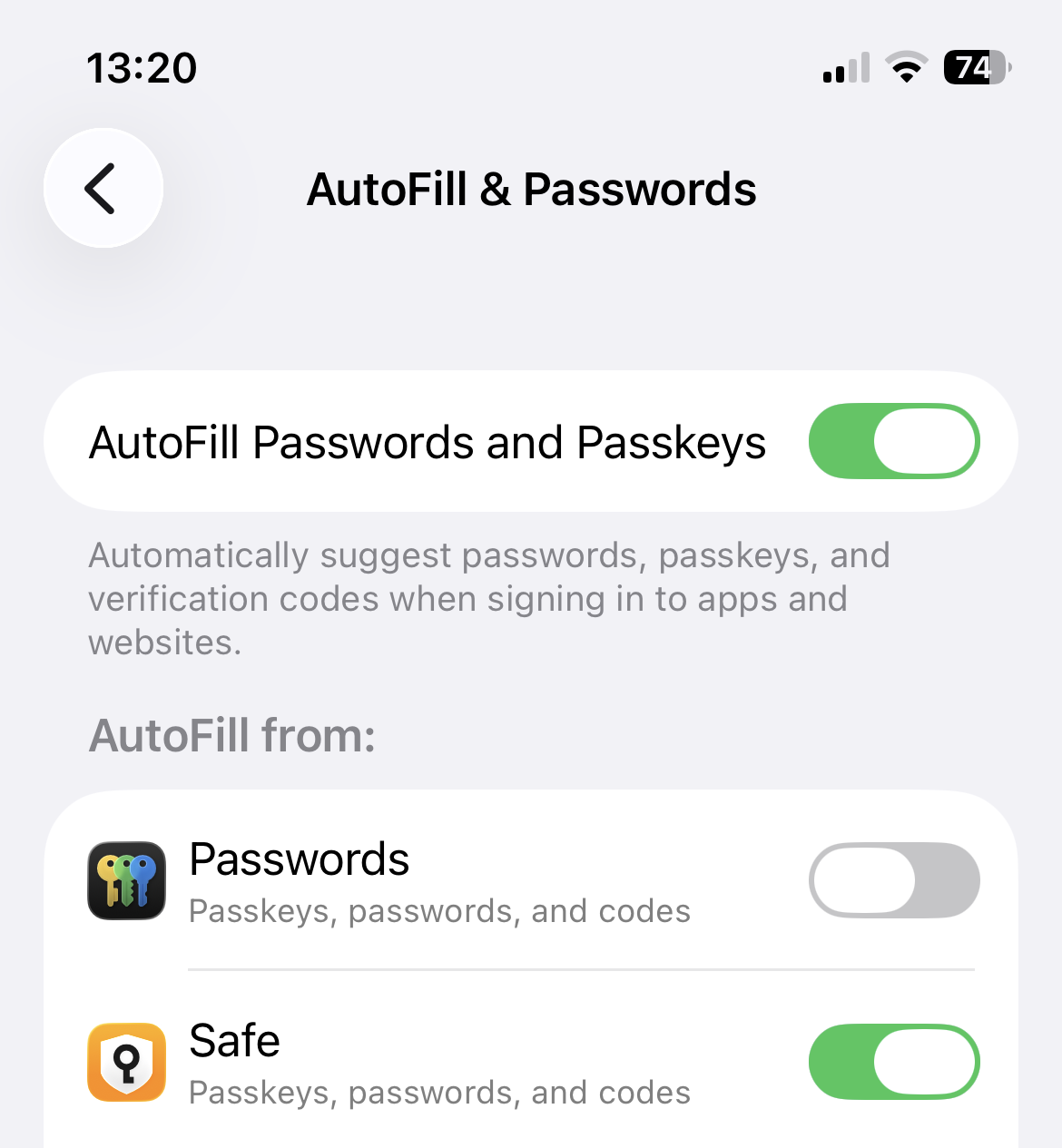
Set Safe as autofill provider in iOS Settings
Safe must be enabled as your AutoFill provider for passkeys to work. Go to iPhone Settings → General → AutoFill & Passwords, turn on AutoFill Passwords and Passkeys, and turn on Safe in the list below it.
A Passkey isn't being suggested at login
Check that the card has Use for Autofill enabled. Also make sure the card has a Website field with the correct address for the site you're logging in to — without it, the passkey won't be matched.
Still not working?
Contact support@safe-in-cloud.com and include your iOS version, Safe version, and a description of the issue.
Requirements
Safe supports passkeys on macOS 14 and later. Safe must also be turned on as a source of passwords and passkeys:
- macOS 15 and later: open System Settings → General → AutoFill & Passwords and turn on Safe.
- macOS 14: open System Settings → Passwords → Password Options and turn on Safe.
Safari
Safari works with Safe directly. When you create a passkey on a website, Safari offers to save it in Safe. When you sign in, Safari offers the passkey from Safe.
Chrome, Brave, and other Chromium browsers
Chrome doesn't list Safe in its own passkey window — choose Apple Passwords there (iCloud Keychain in older Chrome versions). Behind that row, Chrome passes the request to macOS, and macOS offers Safe. This is how Chrome works on Mac, not something Safe can change.
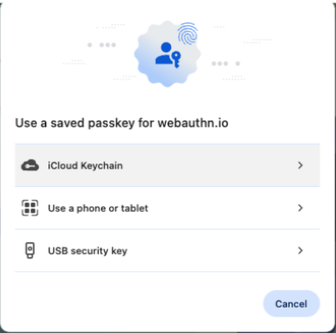
Choose iCloud Keychain
To create a passkey:
- When Chrome shows its window, choose Apple Passwords (or iCloud Keychain). There's no separate Safe row in this window — that's expected.
- The first time, macOS may ask whether to allow Chrome to access your passkeys. Click Allow — otherwise Chrome won't show passkeys from Safe when you sign in.
- macOS opens its own Save a passkey? window. Choose Save in Safe and click Continue.
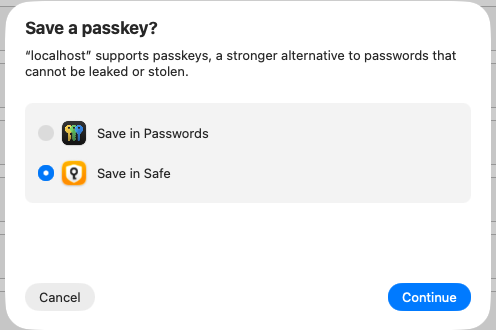
Save In: Safe
To sign in: in Chrome's window, choose Apple Passwords (or iCloud Keychain) again, and macOS offers the passkey from Safe.
Still not working?
Contact support@safe-in-cloud.com and include your macOS version, your browser and its version, your Safe version, and a description of the issue.