 Safe Knowledge Base
Managing Labels
Safe lets you create your own labels, name them, color them, and organize them however you like. Unlike built-in categories, custom labels are fully under your control — you decide what they're called, what they look like, and when to delete them.
Opening label management
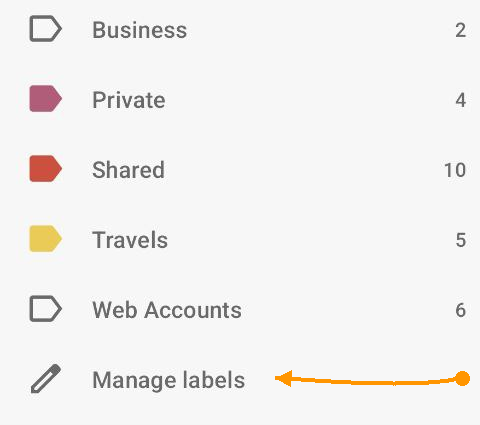
Left menu then Manage Labels
Open the Left menu and tap Manage Labels. You'll see all custom labels for the currently selected database.
Creating a label
Tap the + button. Give the label a name and choose a color by tapping the tag icon. You can also pin the label to the top of the list so it's always easy to find.
Editing and deleting labels
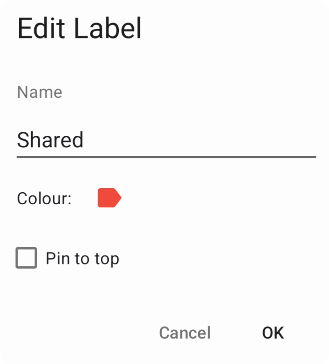
Configure existing or new label
Tap any existing label to edit its name, color, or pin status. To delete it, open it for editing and use the delete option — deleting a label removes it from all cards it was assigned to.
Assigning labels to cards
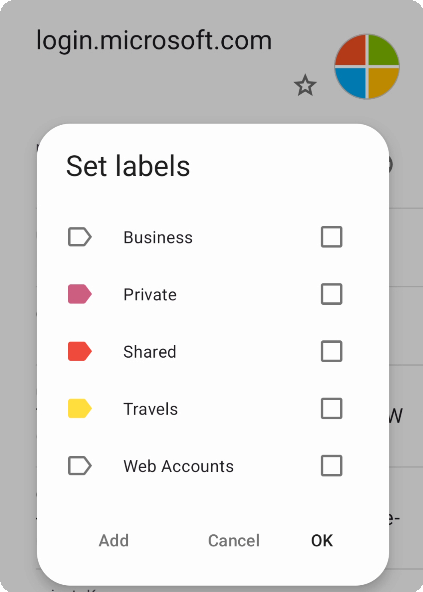
Assign labels to a card process
Open any card and tap the label icon in the toolbar. Select one or more labels from the list — or create a new one right there. Assigned labels appear on the card and in the Side Menu for quick filtering.