 Safe Knowledge Base
Smartwatch
Safe has a companion app for smartwatches — glance at a password right from your wrist without unlocking your phone. Useful for Wi-Fi codes, PIN codes, or anything you need to read quickly.
Setup
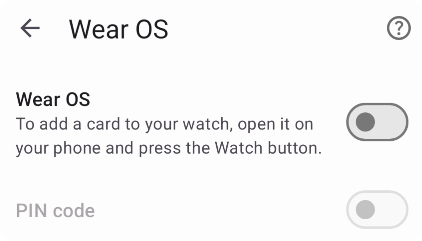
Wear OS settings
Make sure your Wear OS watch is paired and connected to your phone, then open Safe and go to Settings → Wear OS. Enable the Wear OS toggle and set a PIN code — this PIN protects access to your passwords on the watch.
The Safe companion app installs automatically on your watch. If it didn't, open the Play Store on the watch, go to Apps on your phone, and install Safe from the list.
Adding cards to the watch
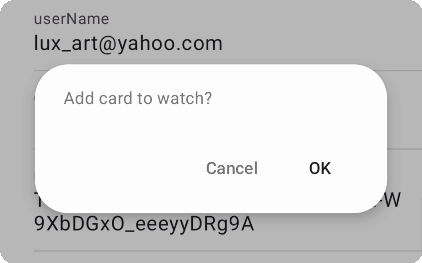
Tap the Watch button and agree
No cards sync to the watch automatically — you choose which ones to add. Open any card and tap the Watch button in the toolbar. The card will be transferred to your watch and will also appear under the Watch label in the app.
To remove a card from the watch, open it and tap the Watch button again.
Using Safe on the watch
Open Safe on your watch and enter your PIN. You'll see the list of cards you've added. Tap any card to view its details directly on the watch.
Troubleshooting
Cards not appearing on the watch?
- Restart both your phone and the watch
- Reestablish the connection in the Wear OS app on your phone
- Make sure you have a Premium subscription — the Wear OS feature requires Premium
The watch app didn't install automatically? Open the Play Store on your watch → Apps on your phone → find Safe and install it manually.
Setup
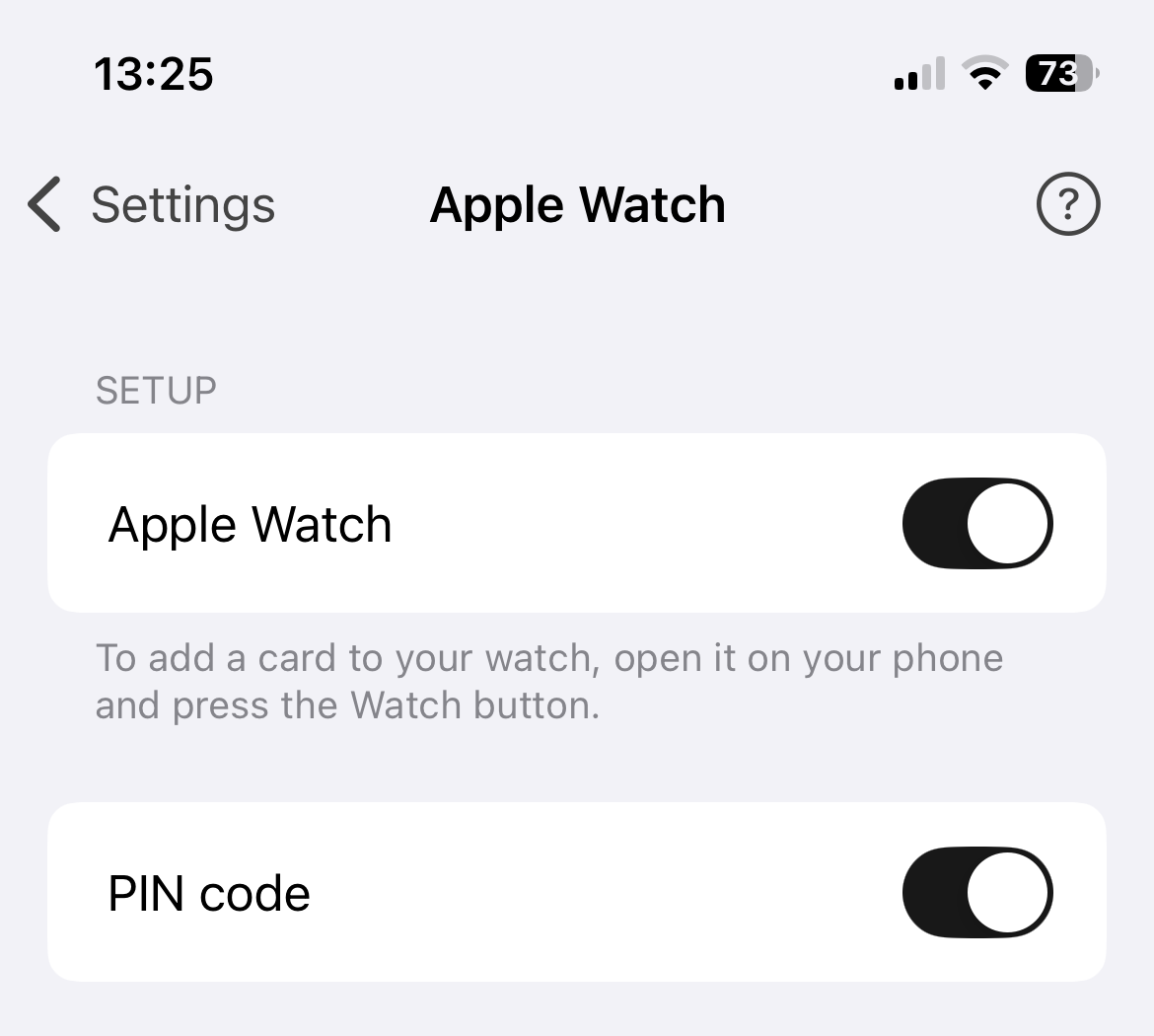
Apple Watch settings in Safe
Make sure your Apple Watch is connected to your iPhone, then open Safe and go to Settings → Apple Watch. Enable the Apple Watch toggle and tap PIN code to set a 4-digit code — this PIN protects access to your passwords on the watch.
Adding cards to the watch
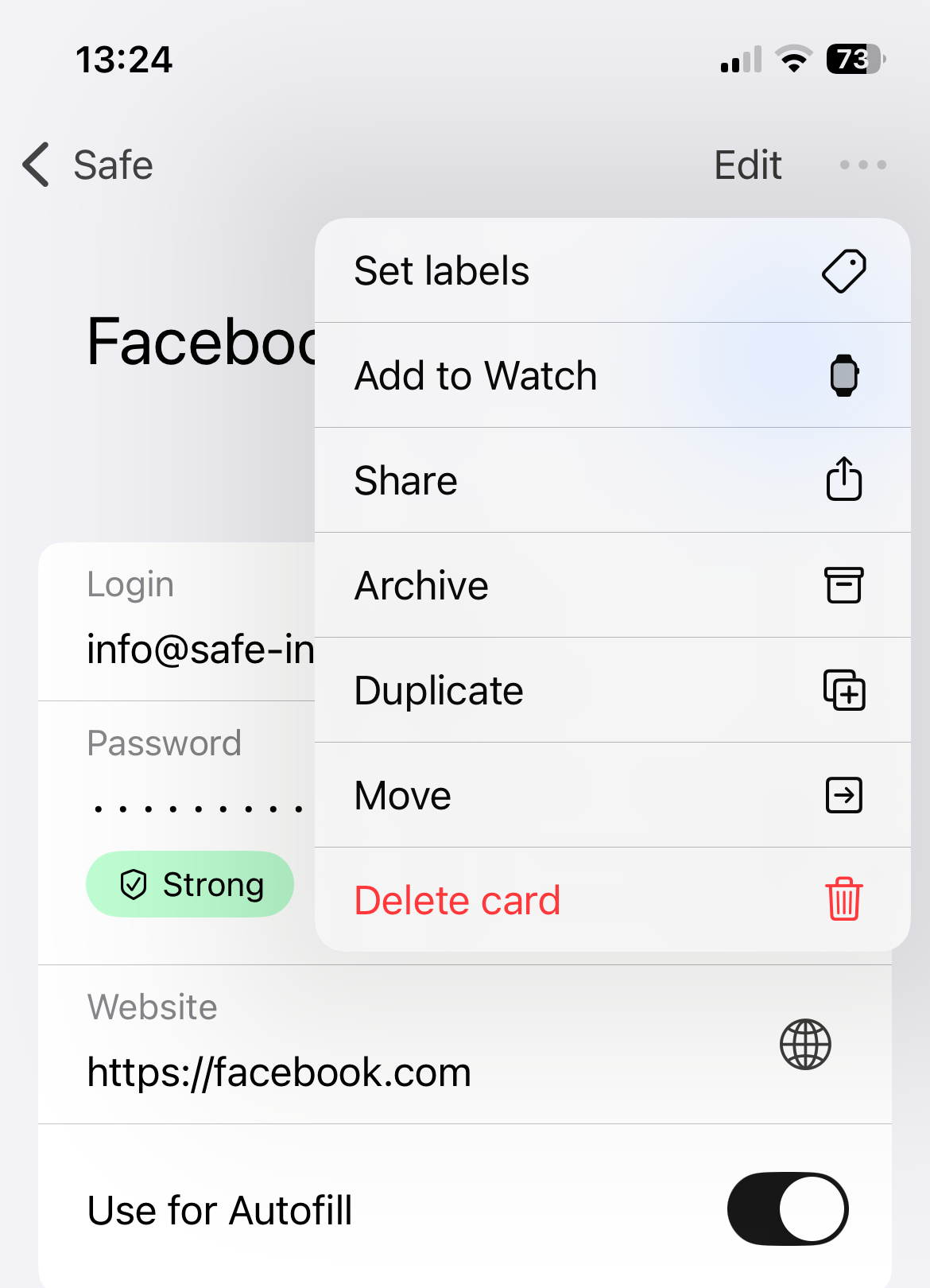
Tap Add to Watch in the card menu
No cards are added to the watch by default — you choose which ones to add. Open any card and tap the Watch button in the bottom toolbar. The card will be transferred to your watch and will also appear under the Watch label in the app.
To remove a card from the watch, open it and tap the Watch button again.
Using Safe on the watch
Open Safe on your Apple Watch and enter your PIN. You'll see the list of cards you've added. Tap any card to view its details right on the watch.
Troubleshooting
Safe for Apple Watch installs automatically on your connected watch. If it didn't, open the Watch app on your iPhone and enable Safe from the app list.
Cards not appearing on the watch?
- Restart both your iPhone and Apple Watch
- Reestablish the connection between your phone and watch
- Make sure you have a Premium subscription — the Apple Watch feature requires Premium