 Safe Knowledge Base
Autofill Issues
If autofill isn't appearing where you expect, the fix is usually a one-time setting.
Autofill not working in apps
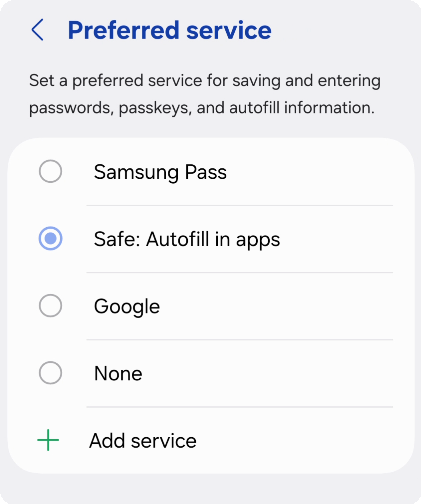
Set Safe as preferred autofill service
Safe needs to be set as your system's autofill provider. Go to Settings → Passwords, passkeys & accounts → Preferred service and select Safe.
Once set, you'll see Safe suggestions whenever you tap a login field in any app.
Haven't set up autofill yet? See Set Up Autofill
Autofill not working in Chrome
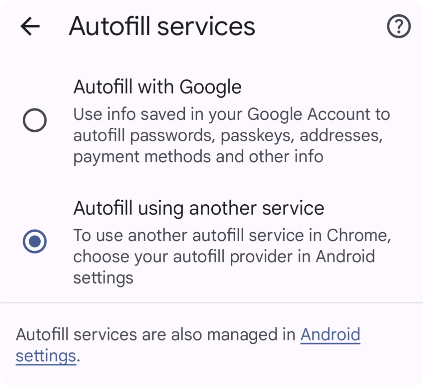
Configured autofill in Chrome
Open Chrome Settings → Autofill Services and choose Autofill using another service. Restart Chrome.
Chrome 131 or newer is required.
A card isn't being suggested
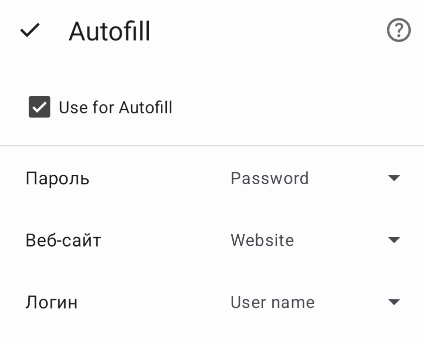
Enable autofill for this card
For a card to appear in autofill suggestions, it needs three things: a User name field, a Password field, and a Website field. Also check that the Use for Autofill option is enabled inside the card.
Still not working?
Contact support@safe-in-cloud.com and include your device model, OS version, Safe version, and a description of the issue. Screenshots or a short video are especially helpful.
Autofill not working
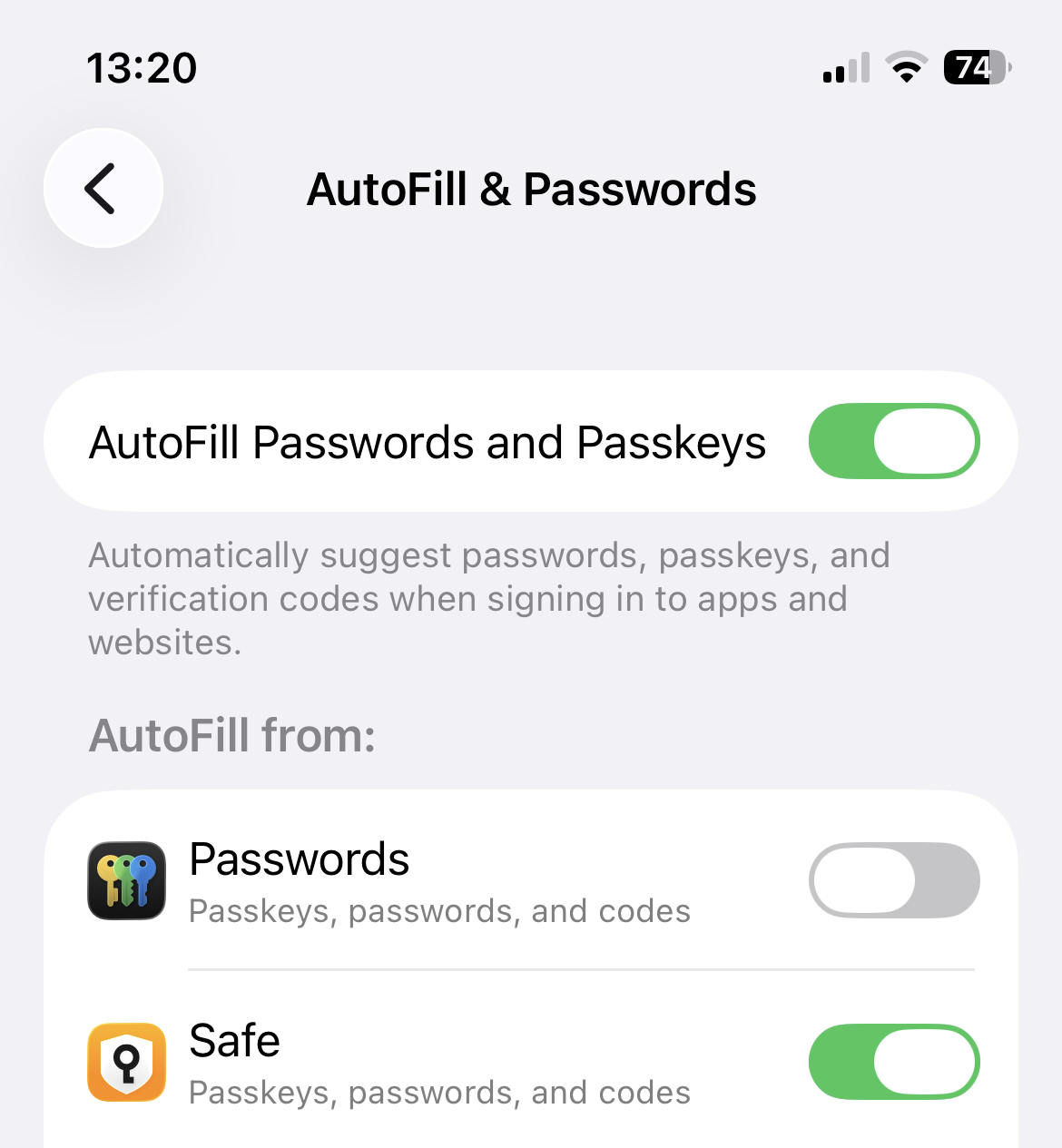
Set Safe as autofill provider in iOS Settings
Safe needs to be enabled in your iPhone settings. Go to iPhone Settings → General → AutoFill & Passwords, enable AutoFill Passwords, and make sure Safe is selected as the source.
Once set, you'll see a key icon above the keyboard whenever you tap a login field. Tap it to fill your credentials from Safe.
Haven't set up autofill yet? See Set Up Autofill
A card isn't being suggested
Enable autofill for this card
For a card to appear in autofill suggestions, it needs three things: a User name field, a Password field, and a Website field. Also check that the Use for Autofill option is enabled inside the card.
Still not working?
Contact support@safe-in-cloud.com and include your iOS version, Safe version, and a description of the issue.
Extension not connecting
The browser extension requires the Safe desktop app to be running. Look for the Safe icon in your system tray — if it's not there, launch the app first, then try again in the browser.
If the extension shows a "not running" error: update Safe to version 25.3.0 or later on Windows, or 25.3.5 or later on macOS.
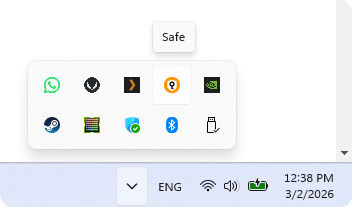
Safe in the system tray
Haven't installed the extension yet? See Set Up Autofill
A card isn't being suggested
Enable autofill for this card
For a card to appear in autofill suggestions, it needs three things: a User name field, a Password field, and a Website field. Also check that the Use for Autofill option is enabled inside the card.
Still not working?
Contact support@safe-in-cloud.com and include your OS, browser name and version, Safe version, and a description of the issue.