 Safe Knowledge Base
Shared Database via Google Drive
Google Drive is the simplest way to share a database with your family. Everyone connects to the same Google account in Safe, and any changes sync to all family members automatically.
What you'll need
Create a new, dedicated Google Workspace account for the shared database — don't use anyone's personal account. A clean account keeps things separate: no contacts, no calendar, no personal email mixing in. Everyone in the family will use this account only for syncing the shared Safe database.
Create a Google Workspace account →
Step 1: Create the shared database
On any device, open Safe and create a new database. Tap the Safe button in the top-right corner of the app → Manage Databases, select the shared database, and configure its cloud: choose Google Drive and sign in with the new shared account.
Add the passwords you want to share — Netflix, Disney+, Wi-Fi, and anything else the family needs access to.
Step 2: Each family member connects
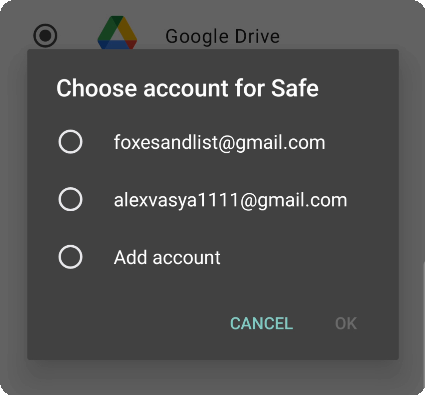
Choose Google account for Safe
On Android, Safe accesses Google Drive through the Google account registered on the device. Each family member needs to add the shared account to their phone first:
- Open phone Settings → Accounts → Manage accounts → Add account → Google
- Sign in with the shared account
- Disable mail, contacts, and calendar sync for this account — you only need Drive
After adding the account, open Safe, tap the Safe button in the top-right corner of the app → Manage Databases, select the shared database, and configure its cloud: choose Google Drive and select the shared account from the list.
On iOS, it's simpler — Safe connects to Google Drive directly without needing the account added to the device. Tap the Safe button in the top-right corner of the app → Manage Databases, select the shared database, and configure its cloud: choose Google Drive and sign in with the shared account when prompted.