 Safe Knowledge Base
How Databases Work
Safe stores your passwords in encrypted database files.
The database lives locally on your device. When you set up cloud sync, Safe keeps a copy in your cloud storage (Google Drive, Dropbox, etc.) and syncs changes automatically. The cloud copy is a backup and a bridge between your devices — not a replacement for the local file.
There are two kinds of databases:
- Main database — created at first launch. Its password is your master password: it protects the database and is required to open the app.
- Extra databases — additional vaults, each with its own password. They open inside the already-unlocked app, so their password is separate from the master password. Each has its own cloud sync and backup settings.
The two types can't replace each other.
Database operations
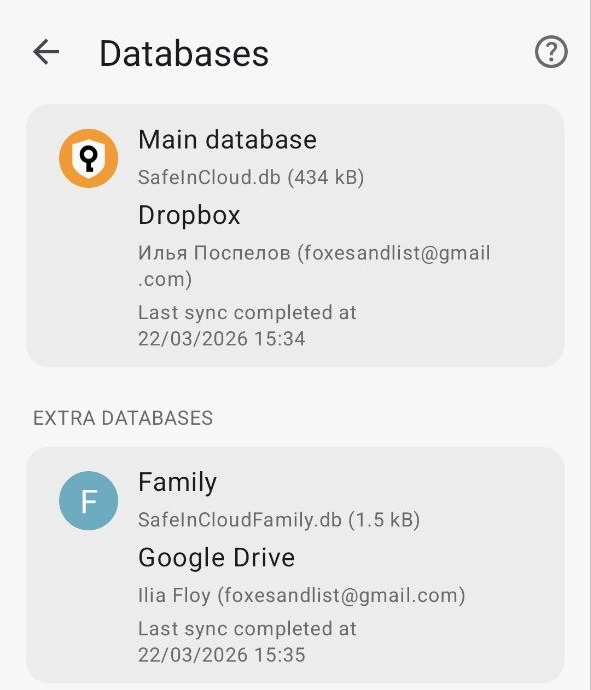
Databases screen — Main and Extra databases
Tap the Safe icon in the top-right corner → Manage databases. Tap any database to see its operations: connect to a cloud, sync, rename, backup to a local file, restore from a local file, or delete.
One thing to keep in mind with Rename: it creates a new cloud file under the new name but the old one stays. Other devices won't switch automatically — rename on each device manually.
Creating an extra database
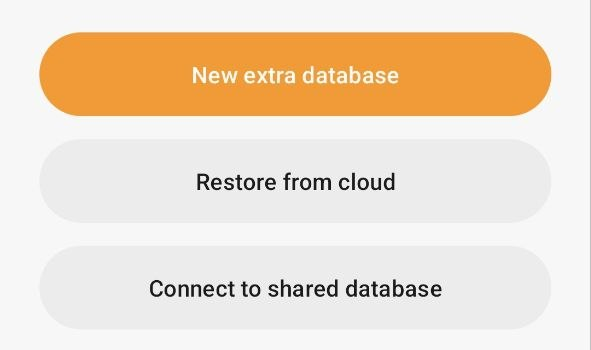
Tap New extra database to create one
In Manage databases, tap + → you'll see three options: New extra database, Restore from cloud, and Connect to shared database. Choose New extra database, give it a name and set a password. It will appear under Extra databases and needs to be connected to a cloud separately.
Restoring your database from the cloud
Got a new phone or reinstalled the app? On the Database setup screen, choose Restore database from a cloud. Select the same cloud account and enter your master password — everything comes back.
Database operations
Go to Options → Databases, click a database, then open Actions — connect to cloud, sync, rename, backup to a local file, restore from a local file, delete.
One thing to keep in mind with Rename: it creates a new cloud file under the new name but the old one stays. Other devices won't switch automatically — rename on each device manually.
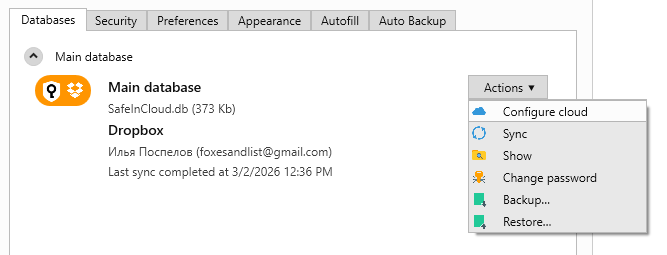
Actions menu in Options → Databases
Where is the database file? These folders are hidden by default — enable hidden files in your OS settings first:
- Windows 10/11:
C:\Users\USERNAME\AppData\Local\Packages\51041SafeInCloud...\LocalCache\Local\SafeInCloud\SafeInCloud.db - Windows Portable:
Data\SafeInCloud.dbinside the app folder - macOS:
/Users/USERNAME/Library/Containers/com.safeincloud.Safe-In-Cloud.OSX/Data/Documents/SafeInCloud.db
Creating an extra database
In Options → Databases, click + → New database. Give it a name and set a password. It will appear under Extra databases and needs to be connected to a cloud separately.
Restoring your database from the cloud
Reinstalled the app or moved to a new computer? On the Database setup screen, choose Restore database from a cloud. Select the same cloud account and enter your master password — everything comes back.