 Safe Knowledge Base
Cloud Sync
Cloud sync makes sure your passwords are never lost — even if you lose your phone or switch to a new device. It also keeps everything in sync if you use Safe on multiple devices. Your database is fully encrypted with your master password, so nobody — not even your cloud provider — can read it.
How to set it up
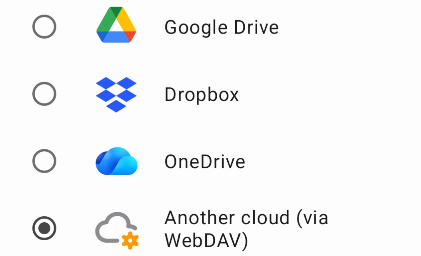
Choose you cloud provider
Safe works with Google Drive, Dropbox, OneDrive, iCloud (on Apple devices), and WebDAV.
If you haven't configured cloud sync yet, you'll see a banner at the top of the main screen — just tap it and the app will walk you through connecting your cloud account.
Already dismissed the banner? No problem. Go to Tools → Configure cloud. Choose your cloud provider, sign in, and you're done.
What happens next?
Once connected, Safe syncs automatically. Every change you make is saved to your cloud within seconds — no manual action needed.
Want to use Safe on another device? Just install the app, choose the option to connect to an existing cloud database, choose the same cloud account, and enter your master password.
Having trouble?
If cloud sync isn't working as expected, check our Cloud Sync Troubleshooting guide.
Cloud sync makes sure your passwords are never lost — even if something happens to your computer. It also keeps everything in sync if you use Safe on multiple devices. Your database is fully encrypted with your master password, so nobody — not even your cloud provider — can read it.
How to set it up
Safe works with Google Drive, Dropbox, OneDrive, and WebDAV. The Setup wizard will suggest you to configure cloud sync.
You can also set it up at any time via Options → Databases → Actions → Configure cloud. Choose your cloud provider, sign in, and you're done.
What happens next?
Once connected, Safe syncs automatically. Every change you make is saved to your cloud within seconds — no manual action needed.
Want to use Safe on your phone as well? Just install the app, choose the option to connect to an existing cloud database, choose the same cloud account, and enter your master password.
Having trouble?
If cloud sync isn't working as expected, check our Cloud Sync Troubleshooting guide.