 Safe Knowledge Base
Passkeys Issues
Passkeys are a secure, passwordless way to log in — no password needed, just biometrics. Safe stores your passkeys alongside passwords and fills them in automatically.
Requirements
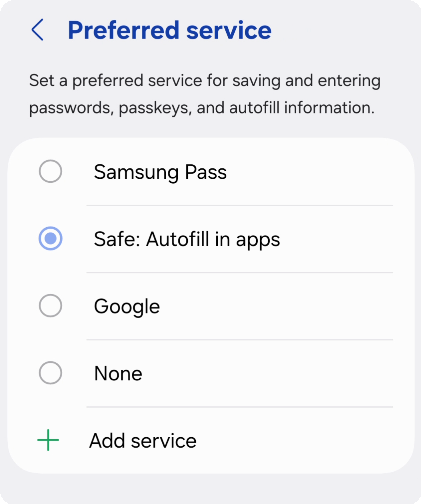
Set Safe as preferred autofill service
Safe supports Passkeys on Android 14 and later, starting from app version 25.0.0. Make sure both your device OS and the app are up to date before troubleshooting.
Safe must also be set as the preferred autofill service. Go to Settings → Passwords, passkeys & accounts → Preferred service and select Safe. Without this, passkeys won't be suggested.
A Passkey isn't being suggested at login
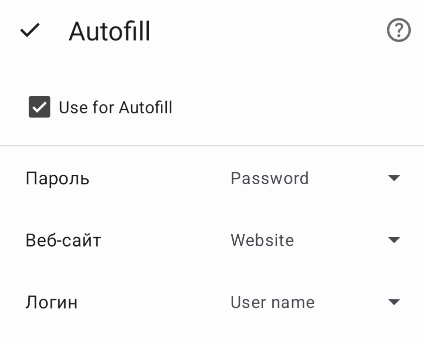
Enable autofill for this card
Check that the card has Use for Autofill enabled. If it still doesn't appear, try resetting the autofill provider: go to Settings → Passwords, passkeys & accounts, set the Preferred service to None, then set it back to Safe. Restart the app.
Chrome doesn't suggest Passkeys
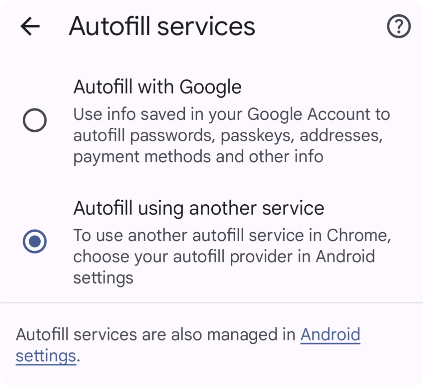
Configured autofill in Chrome
Chrome 131 or newer is required. Also make sure you've enabled the new autofill method: open Chrome Settings → Autofill Services and choose Autofill using another service.
QR code login isn't working
Check your internet connection on both devices and make sure the camera scans the code cleanly. If the issue persists, try creating a new Passkey for the account.
Still not working?
Contact support@safe-in-cloud.com and include your device model, Android version, Safe version, and a description of the issue. Screenshots or a short video are especially helpful.
Requirements
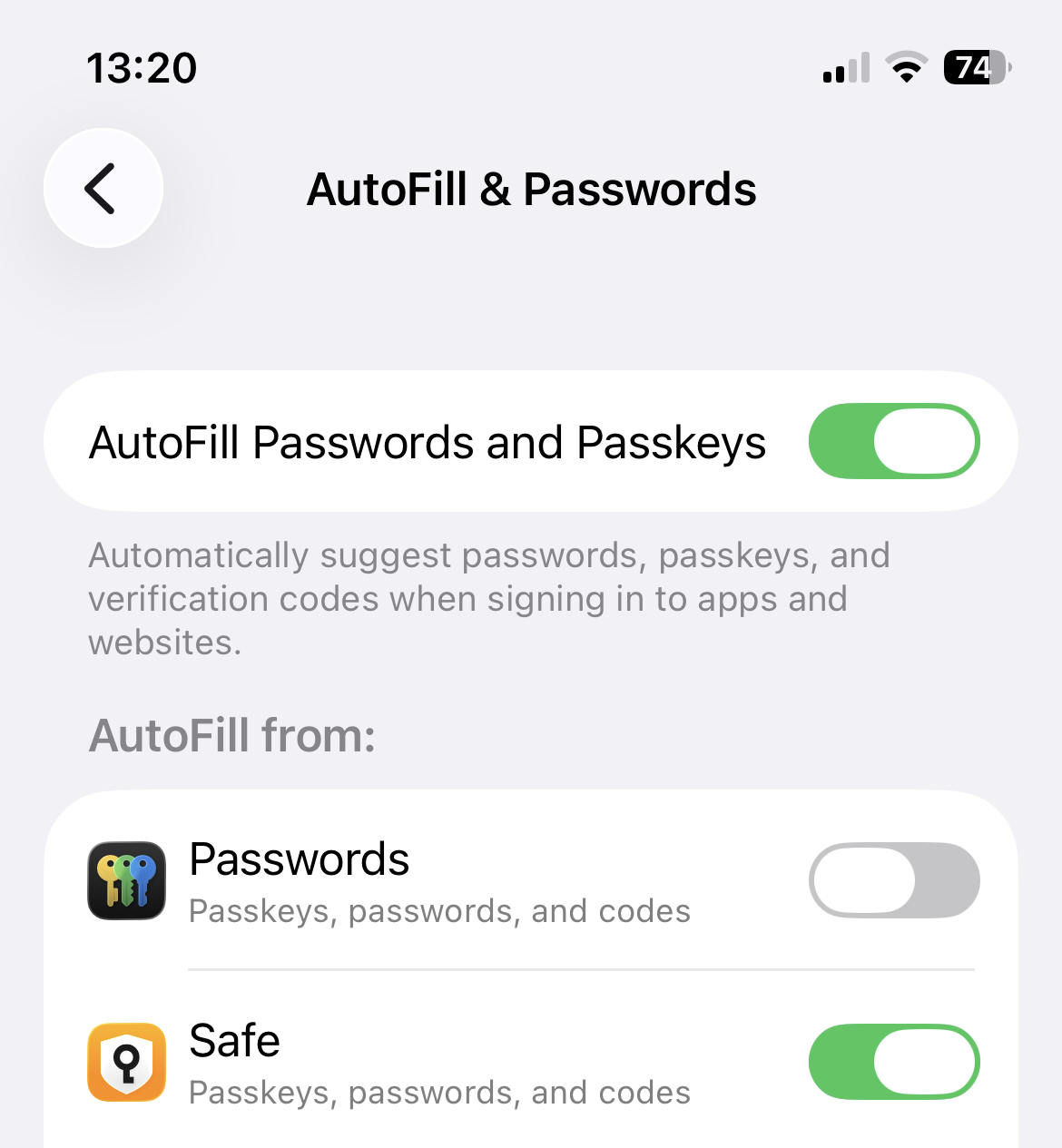
Set Safe as autofill provider in iOS Settings
Safe must be enabled as your AutoFill provider for passkeys to work. Go to iPhone Settings → Passwords → Password Options, enable AutoFill Passwords, and make sure Safe is selected as the source.
A Passkey isn't being suggested at login
Enable autofill for this card
Check that the card has Use for Autofill enabled. Also make sure the card has a Website field with the correct address for the site you're logging in to — without it, the passkey won't be matched.
Still not working?
Contact support@safe-in-cloud.com and include your iOS version, Safe version, and a description of the issue.