 Safe Knowledge Base
Cloud Sync Issues
Sync issues are usually quick to fix. In most cases, reconnecting your cloud account resolves the problem. Pick your platform below.
General troubleshooting
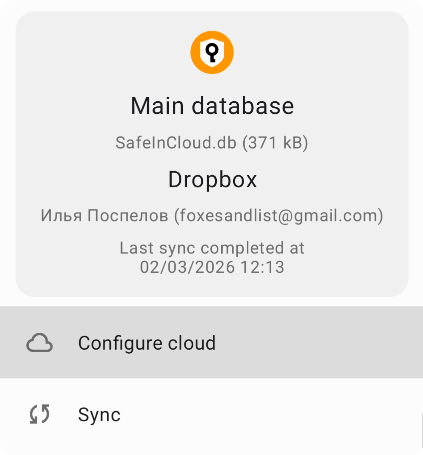
Tap Configure cloud to reselect your provider
If sync stopped working, try these steps in order:
- Check your internet connection
- Try a different network (Wi-Fi or mobile data)
- Check that your cloud account has free storage space
- Restart your device
- Go to Tools → Configure cloud, switch the cloud to None, then reselect your provider and sign in again
- Try a different cloud provider
- Try again later — the cloud service may have temporary issues
Passwords mismatch
If you see a "Passwords mismatch" warning, your local database and the cloud copy have different master passwords. This needs its own guide — see Passwords Mismatch.
Still not working?
Contact support@safe-in-cloud.com. Before writing, export your sync log: go to Settings → About and tap the log button (notebook icon) in the top-right corner. Attach the log to your email along with your cloud provider and a description of the error.
General troubleshooting
If sync stopped working, try these steps in order:
- Check your internet connection
- Check that your cloud account has free storage space
- Restart your computer
- Go to Options → Databases (Preferences on Mac), click Actions → Configure cloud, switch to None, then reconnect your provider and sign in again
- Try a different cloud provider
- Try again later — the cloud service may have temporary issues
- Check that your antivirus or firewall isn't blocking Safe during cloud authentication — add Safe as an exception, or temporarily disable it to test
- Check your system proxy settings: try disabling the proxy or setting a bypass for local addresses
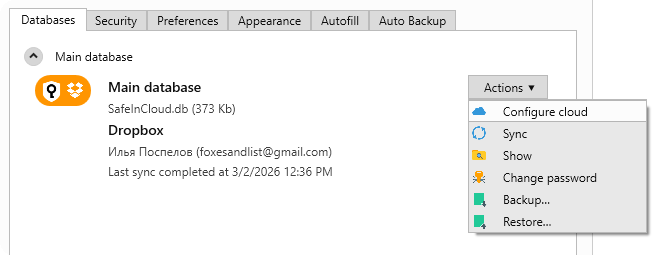
Configure cloud in Options
Passwords mismatch
If you see a "Passwords mismatch" error, your local database and the cloud copy have different master passwords. This needs its own guide — see Passwords Mismatch.
Still not working?
Contact support@safe-in-cloud.com. Before writing, export your sync log from Help → About → Show log. Attach the log to your email along with your cloud provider and a description of the error.