 Safe Knowledge Base
Set Up Autofill
Autofill is what makes a password manager truly convenient. Once enabled, Safe will automatically suggest your saved passwords whenever you log into an app or a website. No more switching between apps to copy and paste.
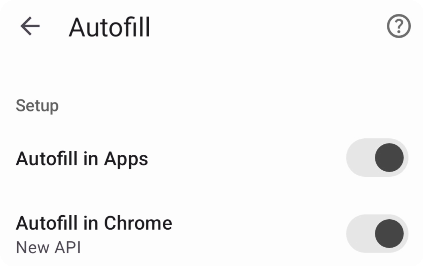
Configured autofill in Safe
On first launch, the setup wizard will walk you through enabling autofill. If you skipped it, a banner will appear at the top of the main screen — tap it to come back to this step. On Android, there are two separate autofill settings that both need to be configured:
Autofill in Apps
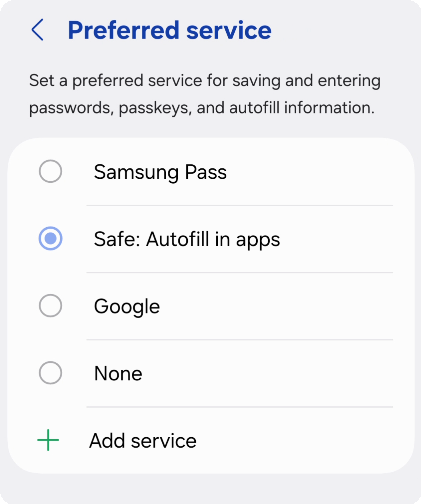
Set Safe as preferred autofill service
This covers all apps on your phone. Your Android system needs to know that Safe is your password provider. Go to Tools → Settings → Autofill → in Apps and follow the steps to set Safe as the autofill service.
Once enabled, you'll see Safe suggestions whenever you tap a login field in any app.
Autofill in Chrome
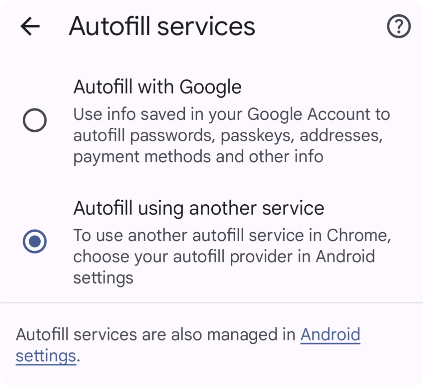
Configured autofill in Chrome
Chrome manages autofill separately from the system and needs its own setup. Go to Tools → Settings → Autofill → in Chrome and follow the steps.
After both are configured, you're fully covered on Android.
Something not working?
If autofill isn't appearing where you expect, check our Autofill Troubleshooting guide.
On first launch, the setup wizard will walk you through enabling autofill. If you skipped it, a banner will appear at the top of the main screen — tap it to come back to this step.
Enable Password AutoFill
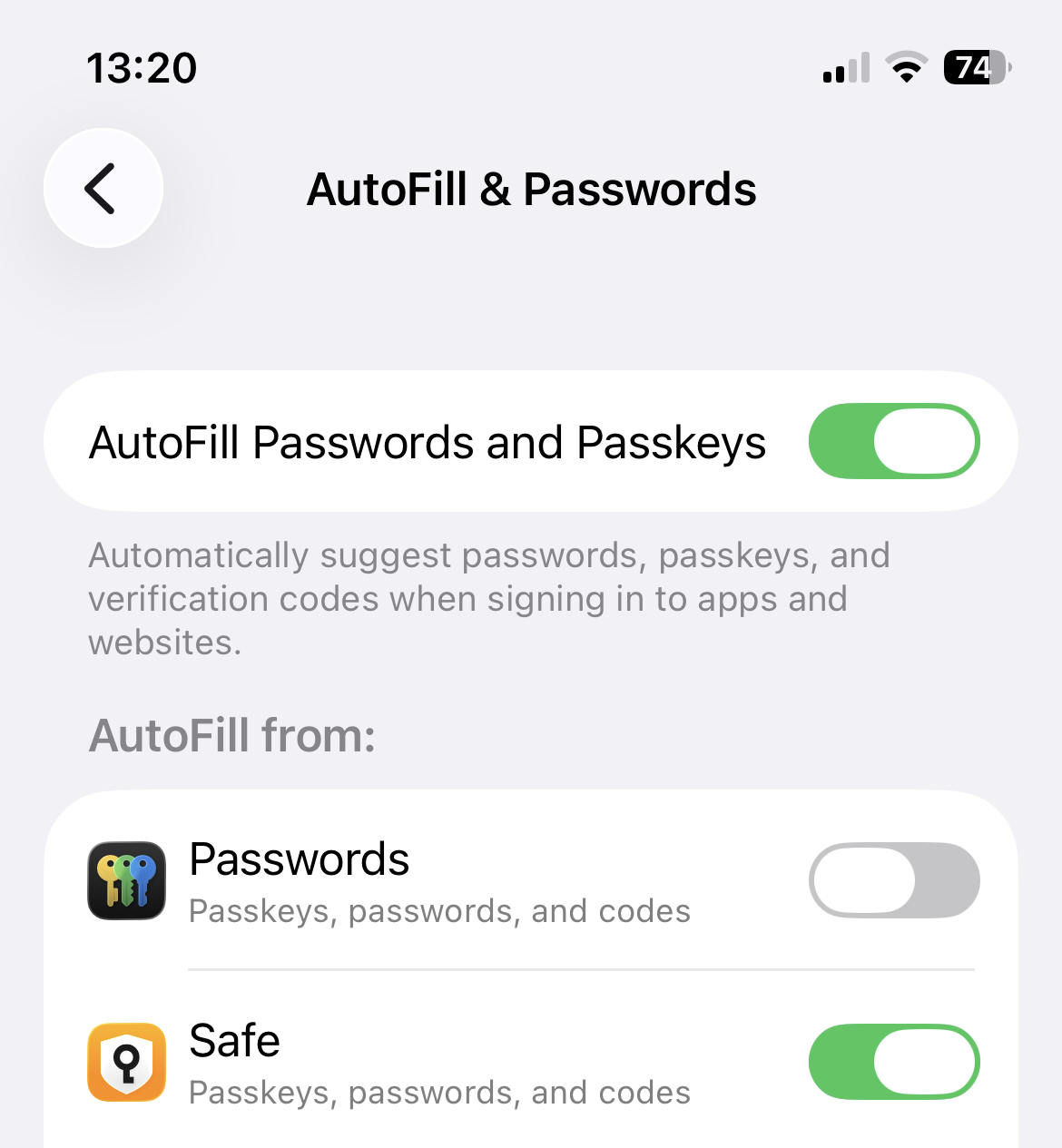
Set Safe as autofill provider in iOS Settings
Go to iPhone Settings → General → AutoFill & Passwords and enable AutoFill Passwords. Make sure Safe is selected as the source.
Once enabled, you'll see a key icon above the keyboard whenever you tap a login field in any app. Tap it to fill in your credentials from Safe.
Something not working?
If autofill isn't appearing where you expect, check our Autofill Troubleshooting guide.
The Setup wizard will suggest you to set up autofill in browsers. Install the extension for your browser and follow the on-screen instructions.
- Chrome extension
- Firefox extension
- Edge extension
- Safari — the autofill extension is built into the Safe app, no additional installation needed
Once installed, you'll see the Safe icon in your browser toolbar. When you visit a login page, click the Safe icon in the toolbar and select the credentials you want to fill in. Make sure the Safe desktop app is running — the extension connects to it to access your passwords.
Something not working?
If the extension isn't filling passwords as expected, check our Autofill Troubleshooting guide.