 Safe Knowledge Base
How to Use Biometric Login
Safe supports fingerprint and face unlock so you don't have to type your master password every time.
Setup
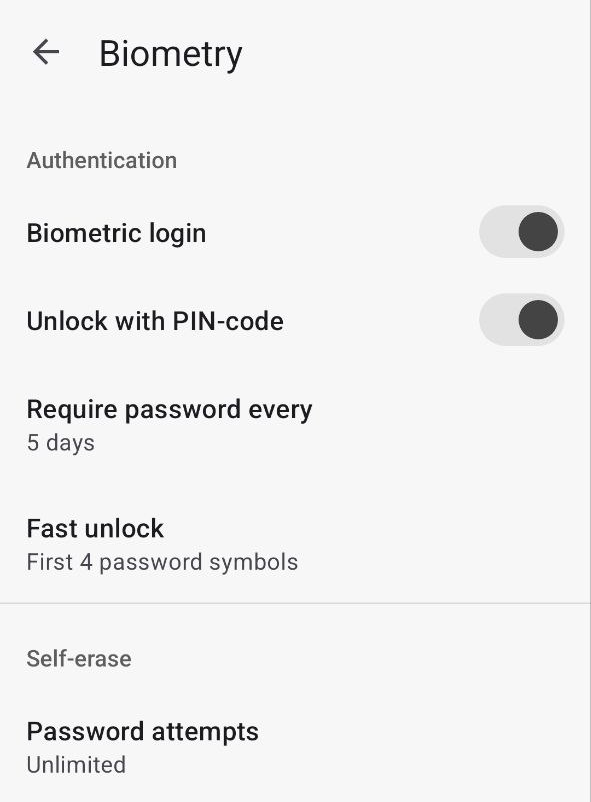
Android Biometry settings screen
Go to Settings → Biometry. Turn on the Biometric login toggle and confirm when prompted by your system.
Usage
Close and reopen Safe — the unlock screen will prompt for your biometric. If recognition fails, tap the password field at the bottom of the screen and enter your master password.
Troubleshooting
Biometric login doesn't work?
- Make sure biometrics are enabled in your phone's system settings
- Check that Biometric login is on in Settings → Biometry
- Turn it off, restart the app, then turn it back on and complete setup again
Setup
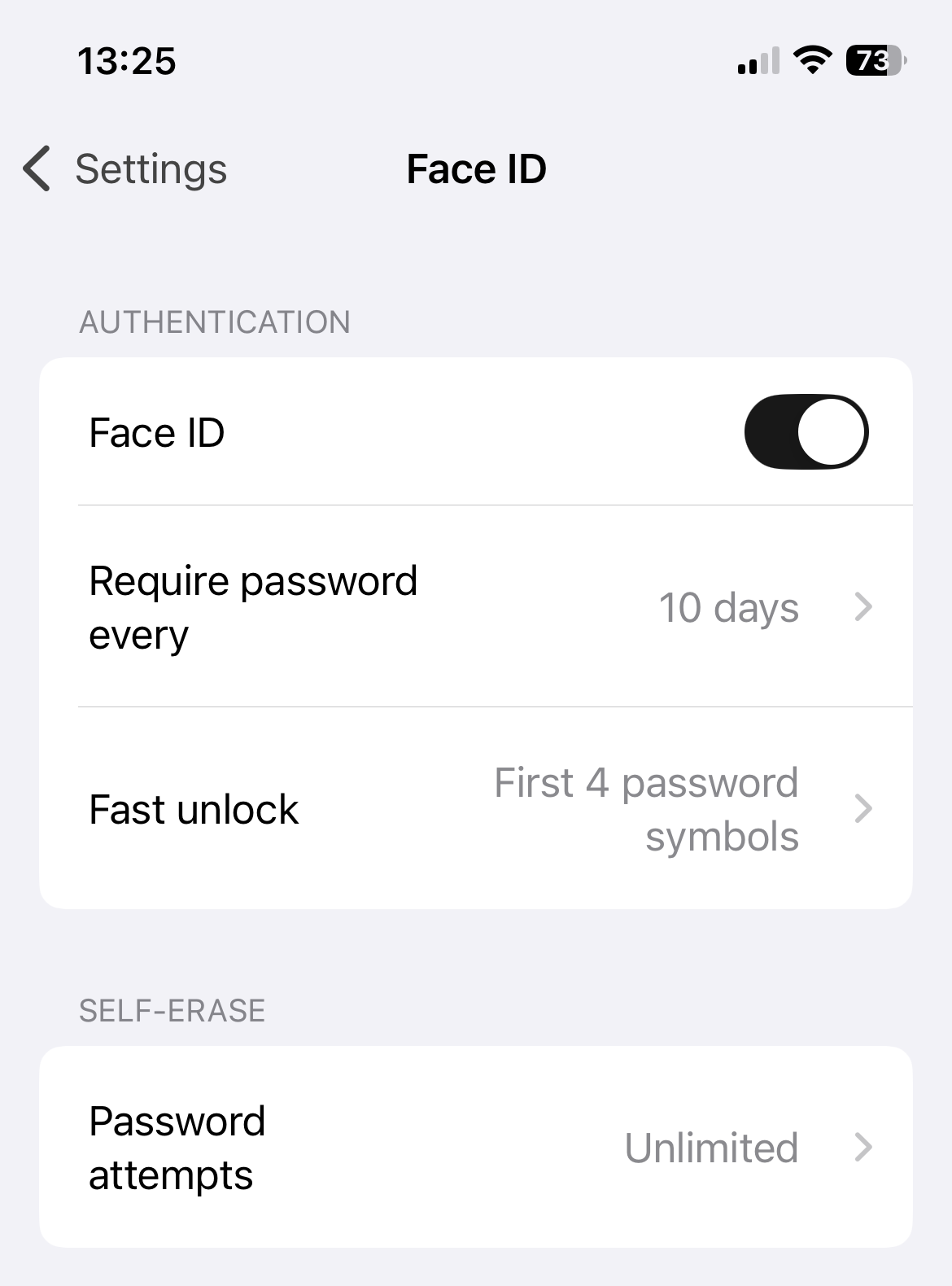
Face ID settings in Safe
Go to Settings → Biometry. Turn on Face ID (or Touch ID on older devices). Restart the app and confirm access when prompted at login.
Usage
Next time you open Safe, Face ID or Touch ID will activate automatically on the unlock screen.
Troubleshooting
Can't activate Face ID / Touch ID in Settings?
- Make sure Face ID / Touch ID is fully configured in iPhone Settings → Face ID & Passcode
- Confirm your Premium subscription is active — biometric login requires Premium
- Try restarting the device
- Disable Face ID in iPhone Settings, then re-enable it
Face ID doesn't activate on the unlock screen?
- You may have changed a phone security setting — enter your master password once to reactivate biometrics
- If your free trial has expired, upgrade to Premium to continue using biometric login