 Safe Knowledge Base
Passwords Mismatch
"Passwords mismatch" means the local database on your device and the copy in the cloud have different master passwords. Safe can't merge them automatically — you need to resolve that manually.
Step 1: Align passwords on all devices
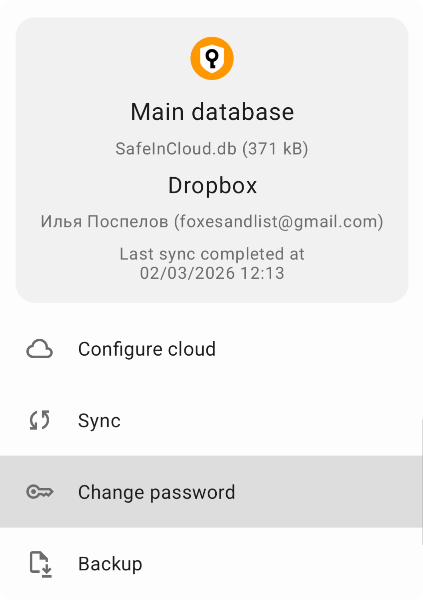
Tap for align passwords
Try the simple fix first. On every device where Safe is installed, set the master password to the same value:
- On mobile: Settings → Databases → Main Database → Change Password
- On desktop: Options → Databases (Preferences on Mac) → select the main database → Actions → Change Password
After updating all devices, trigger a manual sync on each. If the warning disappears — you're done.
Step 2: Use conflict resolution (if the warning persists)
On mobile, tap the warning icon on the main screen. On desktop, click the warning indicator at the bottom of the app. You'll see three options:
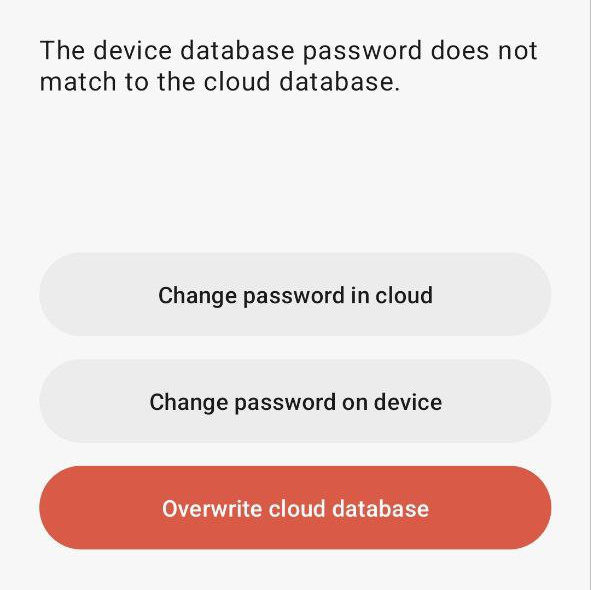
Choose resolution options
- Change password in cloud: updates the cloud database's master password to match the one on your device. Use this if your device has the right password and data.
- Change password on device: updates the device's master password to match the cloud database. Use this if the cloud copy has the correct password.
- Overwrite cloud database: replaces the cloud copy with your local database. This is destructive — the previous cloud copy is deleted. Use this only if your local data is the one you want to keep.
Not sure which to pick? Save a backup first — on mobile: tap the Safe button in the top-right corner of the app → Manage databases → tap the database → Backup. On desktop: Options → Databases → select the database → Actions → Backup.
Still stuck?
Contact support@safe-in-cloud.com. Before writing, export your sync log: on mobile go to Settings → About and tap the log button (notebook icon) in the top-right corner; on desktop use Help → About → Show log. Attach the log to your email.