 Safe Knowledge Base
How to Set Up 2FA Codes
Safe can store and generate TOTP codes (one-time passwords) — the 6-digit codes used for two-factor authentication. Once added to a card, Safe generates the code automatically, so you don't need a separate authenticator app.
Adding a TOTP code
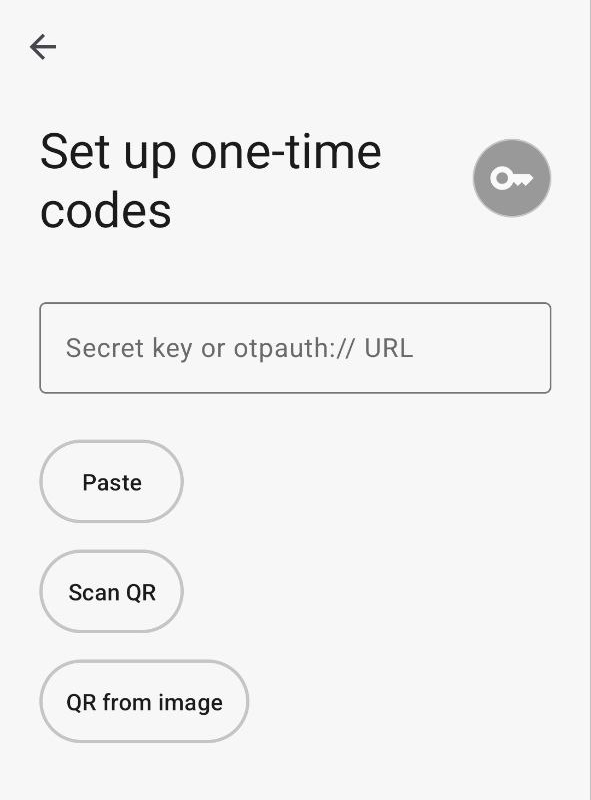
TOTP setup wizard screen
The quickest way is from the main screen: tap + and choose One-time code. A setup wizard opens — enter your secret key, paste an otpauth:// URL, scan the QR code directly, or pick a QR code from your photo library. Tap Continue to finish.
You can also add a TOTP code to an existing card: open the card, tap Edit, tap Add field, and select One-time password. The same setup screen opens.
Using the code
Open the card — the TOTP code appears with a countdown timer. Tap the code to copy it.
If autofill is active, Safe can fill the code automatically when a 2FA field is detected.
Adding a TOTP code
Click Add (the + button in the toolbar) and choose the One-time code template — a new card opens pre-configured with a TOTP field. Paste the secret key and save.
You can also add TOTP to an existing card: open it, click Edit, then Add another field, and choose One-time password (2FA). Paste the secret key and save.
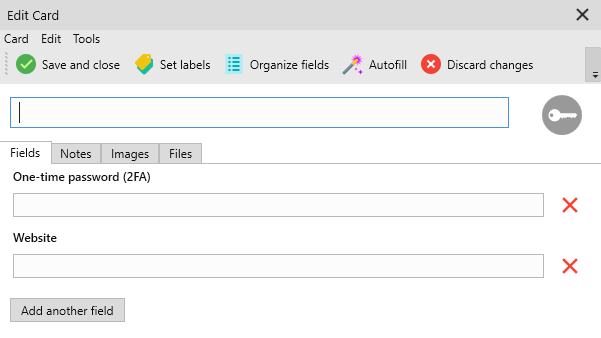
Edit Card with One-time password (2FA) field
Using the code
The TOTP code is shown on the card with a live countdown timer. Click it to copy. The browser extension can also fill it automatically on login pages that request a 2FA code.