 Safe Knowledge Base
I Forgot My Master Password
Log in with biometrics
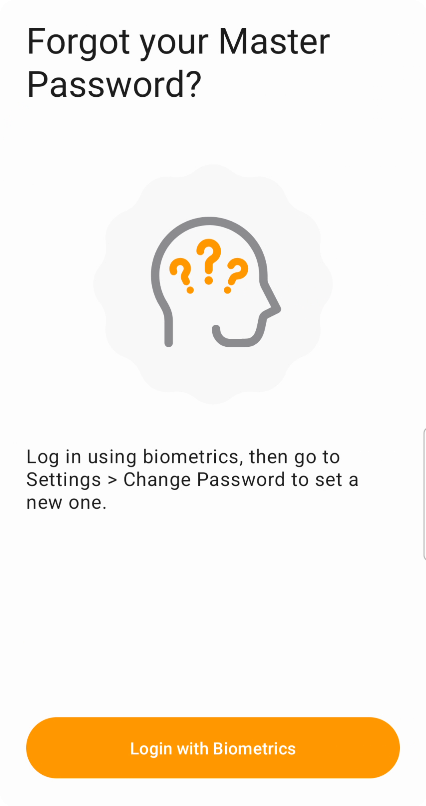
Using biometrics to password recovery
The easiest path — if you have biometrics set up. Enter the wrong password 3 times and Safe will offer you the option to log in with biometrics instead. Once you're in, go to Databases → Main database → Change password. Biometrics are sufficient to confirm the change — you don't need to remember the old password.
After changing the password, sync your data to the cloud and update the password on your other devices too — each one still has the old password stored locally.
Try your common passwords
Before giving up, take a few minutes. Try all your common passwords and variations — capitalization differences, extra spaces, older passwords, different keyboard layouts. Even a small detail can jog your memory.
Roll back using cloud version history
If you changed your password recently and still remember the old one, you may be able to roll back your cloud database to an earlier version that used that password.
This doesn't work if your database is stored in iCloud or Google Drive's app folder.
- Open your cloud storage in a browser and find the
SafeInCloud.dbfile - Open its version history and download a version from before the password change
- Open Safe (desktop is easiest) and enter any password 3 times → choose to delete the local database
- Create a new database with any temporary password
- Go to Options → Databases → Main database → Restore and select the downloaded file
- Try logging in with the old password; if it doesn't work, try an earlier version from the history
Nothing worked — start over
Delete your cloud database file (SafeInCloud.db) from your cloud storage, then:
- Enter any password 3 times and choose to delete the local database
- Create a new database and set a new password
You'll need to re-add your passwords manually or import them from your browser.
Still need help?
Contact support@safe-in-cloud.com — we can't recover your password, but we can help you figure out the best path forward.